
Skills
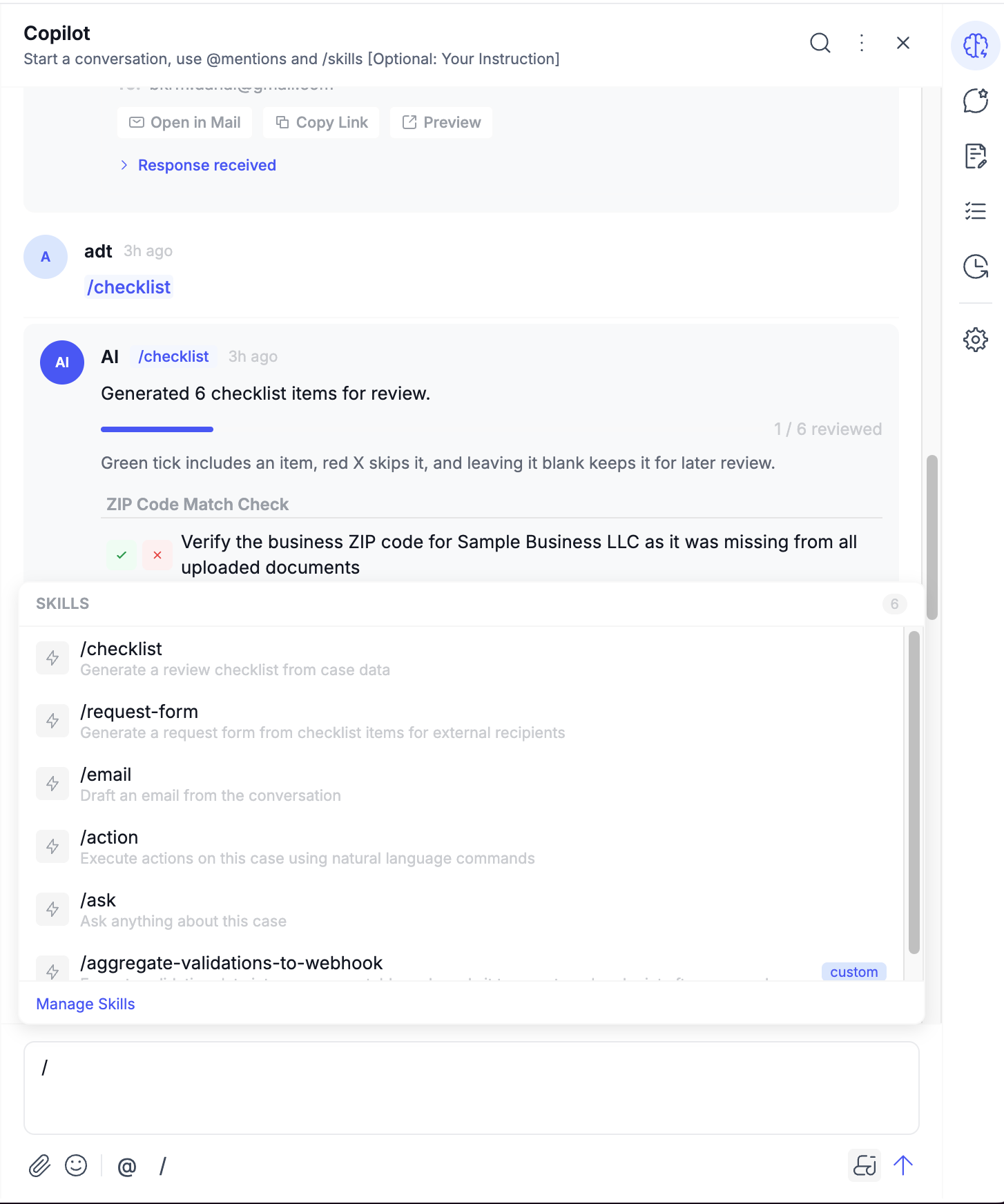
Skills help you get work done inside a case using AI. Instead of manually reviewing everything or switching between multiple tabs, you can run a skill from Copilot or Ask AI and let Docsumo help you analyze the case, generate follow-up actions, draft communication, or trigger case operations.
What Are Skills?
Skills are slash commands that run against the current case.
You use them by typing / followed by the skill name.
System Skill Comparison
| Skill Type | Best for | Typical result |
|---|---|---|
/ask | Questions and analysis | AI answer |
/checklist | Turning findings into follow-up items | Checklist items or tasks |
/email | Drafting outbound communication | Email draft |
/request-form | Collecting structured external input | Request form |
/action | Updating or operating on the case | Action confirmation and execution |
Custom Skill | Team-specific workflows | Depends on configured steps |
How Skills Use Case Context
When you run a skill, it uses context from the current case so the response is grounded in actual case data.
Depending on the skill, this context can include:
- case metadata
- validations
- comments
- checklist items
- case documents
- Copilot files
- extracted data
- full case JSON
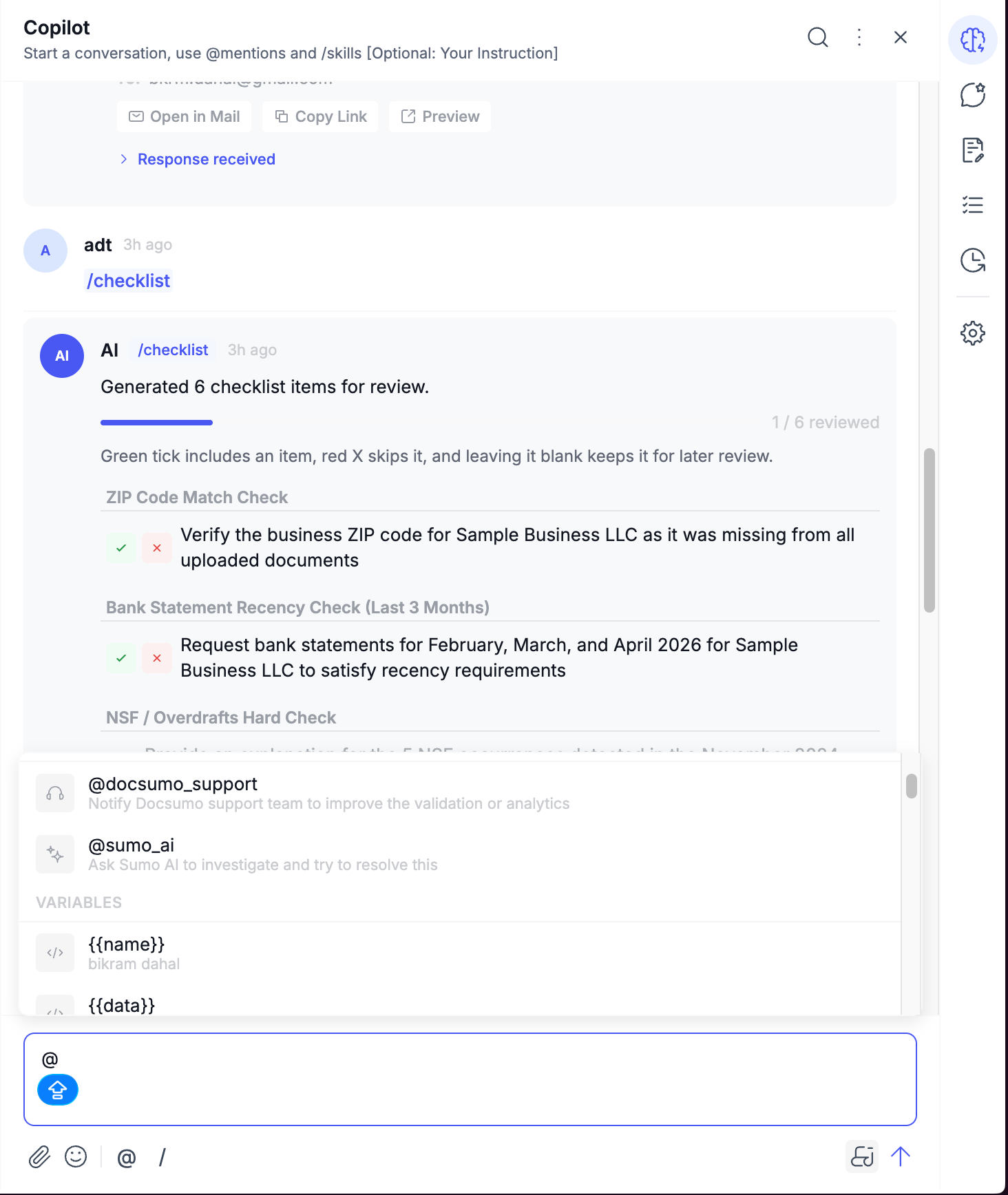
You can also add extra context manually with references such as:
@case.documents@case.files@case.files_copilot@case.extracted_data@case.validation
This is helpful when you want the skill to focus on a specific part of the case.
In general:
- use
Copilotwhen you want a collaborative or action-oriented output - use
Ask AIwhen you want analysis, explanation, or conversational help
When to Use Skills
Use skills when you want to move faster through a case.
Some common situations:
- You want a quick summary of the case
- You want to turn review findings into a checklist
- You need to draft an email to an applicant or customer
- You want to send a request form to collect missing items
- You want to update a case through natural language
- You want a repeatable custom AI workflow for your team
System Skills
System Skills are the built-in skills available out of the box.
The current system skills are:
/ask/checklist/email/request-form/action
/ask
/ask is the general-purpose case Q&A skill.
Use it when you want the AI to read the current case and answer a question about it.
Best for
- summarizing the case
- identifying missing items
- explaining validation issues
- comparing extracted information
- answering case-specific questions
What it looks at
By default, /ask uses:
- case metadata
- validations
- comments
Example prompts
/ask summarize this case
/ask what documents are missing?
/ask what are the major validation failures?
/ask @case.documents are there any discrepancies in extracted values?
/ask explain this case as if I am a first-time reviewer
How to use it well
- Ask one clear question at a time.
- Add
@case.documentswhen you want document-level detail. - Add
@case.extracted_datawhen you want field-value analysis. - Use
/askfirst when you are trying to understand the case before taking action.
/checklist
/checklist converts case findings into actionable follow-up items.
Use it when you want the AI to identify what needs attention and organize it into task-like items.
Best for
- missing document follow-up
- validation issue review
- compliance checks
- operational follow-up
What it looks at
/checklist uses:
- case metadata
- validations
- comments
Example prompts
/checklist
/checklist only include missing document issues
/checklist only include compliance-related items
/checklist @case.documents include document gaps and naming issues
How to use it well
- Run
/checklistafter validations are ready. - Narrow the checklist with instructions if you only want one category of issues.
- Review the checklist before using
/emailor/request-form. - Think of
/checklistas the bridge between analysis and action.
/email
/email drafts an email using the current case context and checklist items.
Use it when you want to prepare a customer-facing or reviewer-facing email without writing it from scratch.
What it looks at
/email uses:
- case metadata
- validations
- checklist items
- comments
Rejected checklist items are excluded from the draft.
Example prompts
/email
/email [email protected]
/email please be formal and include a deadline of next Friday
/email [email protected] request missing documents urgently
/email summarize the pending items in a concise tone
How to use it well
- Run
/checklistfirst so the draft is based on real open items. - Add tone instructions such as
formal,friendly,urgent, orconcise. - Include the recipient email if you want to override the detected one.
- Review the draft before sending, especially for customer-facing communication.
/request-form
/request-form generates a request form that can be sent to an external recipient.
Use it when the recipient needs to upload files, answer questions, complete a table, or provide a signature.
What it looks at
/request-form uses:
- case metadata
- validations
- checklist items with task IDs
Example prompts
/request-form
/request-form [email protected]
/request-form include a signature field for compliance
/request-form [email protected] request updated bank statements
/request-form collect missing ID proof and address proof
How to use it well
- Run
/checklistfirst so the form is based on actual open issues. - Add specific instructions if you want signatures, tables, or custom fields.
- Preview and edit the form before sending it externally.
- Use this when you need a structured reply, not just an email.
/action
/action lets you use natural language to make updates to the case.
Use it when you know what needs to change, but you want the AI to interpret the request and prepare the change for you.
What it looks at
/action uses current case state, including:
- current stage
- current case name
- assigned users
- available actions
- current field values
Example prompts
/action change the stage to review pending
/action rename this case to Q1 Financial Report
/action assign this case to John Smith
/action refresh the validation
/action change document type to Invoice
/action trigger the workflow
/action add a field called Priority with value High
/action create a task to follow up with applicant
/action help
How to use it well
- Be direct about the action you want.
- Use
/action helpwhen you want to explore supported action types. - Use it after
/askif you first need to understand the case and then act on it. - Keep auto-execute disabled unless your team wants a faster but less review-heavy workflow.
Choosing the Right System Skill
Use this quick rule of thumb:
- Use
/askwhen you need understanding. - Use
/checklistwhen you need follow-up items. - Use
/emailwhen you need communication. - Use
/request-formwhen you need structured external input. - Use
/actionwhen you need to change something in the case.
Custom Skills
Custom Skills let your team build repeatable AI workflows that go beyond the built-in skills.
Use custom skills when your process needs more than a single prompt and you want a reusable flow tailored to a case type or business use case.
Best for
- standard internal analysis flows
- multi-step AI workflows
- integrations with external systems
- workflows that need both AI and human review
- repeatable team-specific automation
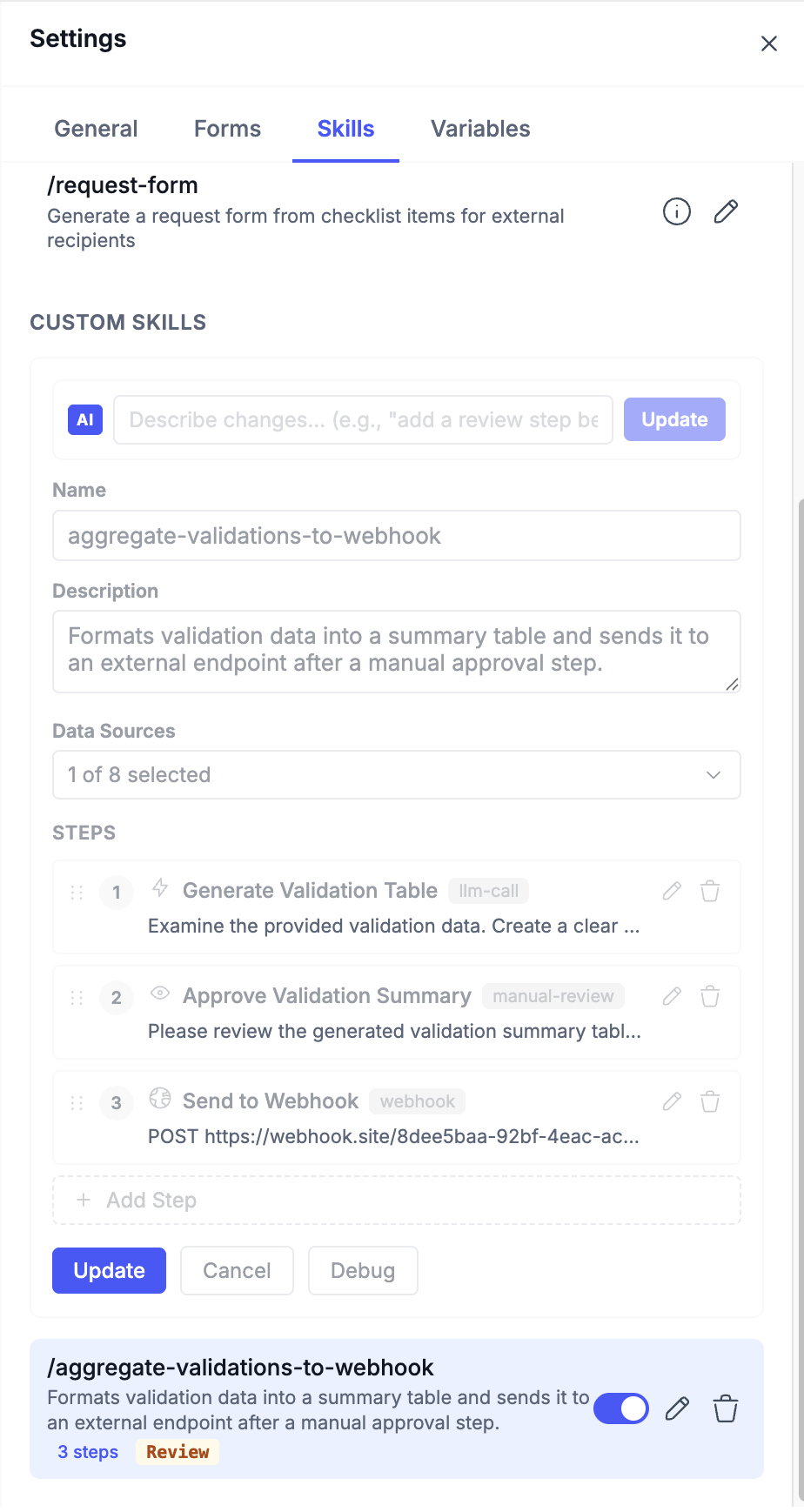
How to Create a Custom Skill
Go to:
Case Overview > Settings > Skills
Then:
- Open the
Custom Skillssection. - Click
Add Skill. - Enter the skill name and description.
- Choose the data sources the skill should use.
- Add one or more steps.
- Save the skill.
You can then run it from Copilot or Ask AI with /skill-name.
How to Think About Custom Skill Design
When building a custom skill, define these first:
1. What should this skill do?
Examples:
- summarize the case for underwriters
- prepare a compliance review packet
- turn extracted values into a webhook payload
- review case issues and pause for human approval before sending externally
2. What data should it use?
You can choose from sources such as:
- case metadata
- documents
- validations
- chat history
- comments
- case files
- Copilot files
- full case JSON
Choose only the data the skill needs so the workflow stays focused.
3. What steps should it follow?
A custom skill can have multiple ordered steps. These steps can be edited, expanded, reordered, and removed.
Supported step types are:
LLM CallJavaScriptWebhookManual Review
Custom Skill Step Types
LLM Call
Use this step when you want AI reasoning or generation.
Main field:
Instruction
Use this for:
- summaries
- classification
- extraction formatting
- recommendations
- generation of structured output
Example:
Review the case data and produce a concise compliance summary with key risks.JavaScript
Use this step when you need logic or transformation after an AI step.
This step can be used to:
- transform output
- apply conditions
- prepare structured payloads
- call external APIs using
fetch() - set the next step result with
setResult()
Use this when an LLM step gives you content, but you need to reshape it before the next action.
Webhook
Use this step when you want to send output to an external service.
This step supports:
- URL
- HTTP method such as
POST,PUT, orGET - optional LLM pre-processing prompt
Use this for:
- pushing case results to another system
- triggering downstream automations
- sending structured outputs to internal tools
Manual Review
Use this step when a person should approve or review the result before the workflow continues.
Main field:
Review Prompt
Use this for:
- compliance approvals
- reviewing an AI-generated draft
- approving outbound payloads
- inserting a human checkpoint before external actions
AI-Assisted Skill Creation
The custom-skill builder includes AI assistance.
Instead of configuring everything manually, you can describe the skill in plain language and let the system generate a starting workflow.
Examples:
Summarize case docs and send an email
Add a review step before the webhook
Create a skill that checks validations and prepares a compliance summary
The system can generate or update:
- name
- description
- context sources
- workflow steps
This is especially useful when:
- you are prototyping a new workflow
- you know the goal but not the exact step design
- you want a faster starting point and will refine it afterward
Managing Custom Skills
From the Skills settings area, users can:
- create a new custom skill
- edit an existing custom skill
- enable or disable a skill
- delete a skill
If a custom skill is disabled, it does not appear as an active slash command for use.
Testing and Debugging Custom Skills
The custom-skill builder includes a debug view so users can test and inspect the workflow before relying on it in production.
Use debugging when you want to:
- validate the selected data sources
- inspect step behavior
- confirm the output of each stage
- troubleshoot a multi-step flow
This is particularly important for webhook or JavaScript-based skills.
Prompt Customization
Prompt customization is available for supported system skills in:
Settings > Skills
Admins can:
- open the prompt editor
- review the current prompt
- save a custom prompt
- reset the prompt to the default
Use prompt customization when a case type needs:
- different tone
- different logic
- different output structure
- more domain-specific behavior
Practical Ways to Use Skills
Workflow 1: Understand a new case quickly
- Run
/ask summarize this case - Review the answer
- Run
/checklist - Use the checklist for follow-up
Workflow 2: Request missing information
- Run
/checklist - Review the open items
- Run
/emailfor a quick outreach draft, or/request-formfor structured collection - Review before sending
Workflow 3: Operate on the case
- Run
/askif you need context - Run
/actionwith the required change - Approve the action card
Workflow 4: Build a team-specific flow
- Create a custom skill
- Choose the right context sources
- Add steps such as
LLM Call,JavaScript,Webhook, andManual Review - Test in debug mode
- Enable the skill for your team
Troubleshooting Tips
If a skill is not giving the expected result:
- Make sure the case has enough context, such as validations or documents.
- Add clearer instructions.
- Add case references like
@case.documentswhen you need deeper context. - Review whether checklist items were rejected before using
/emailor/request-form. - Check the skill prompt in
Settings > Skillsif the output needs tuning. - For custom skills, verify the selected data sources.
- For custom skills, inspect each step if a multi-step workflow is not behaving as expected.
Updated 6 months ago