
AI Extraction Reasoning & Confidence Scores
Overview
We are excited to introduce Extraction Reasoning and Enhanced Confidence Indicators. This update is designed to bridge the gap between automated extraction and human auditability. By providing the specific logic and document citations behind every data point, we empower users to understand the "why" behind the AI's decisions.
Key Benefits:
- Increased Transparency: No more "black box" extractions; see exactly which sections led to a result.
- Faster Auditing: Use interactive citations to jump directly to source text for instant verification.
- Risk Mitigation: Quickly identify fields that require manual review through color-coded confidence tooltips.
Steps to Configure
To enable reasoning for your fields, follow these steps:
-
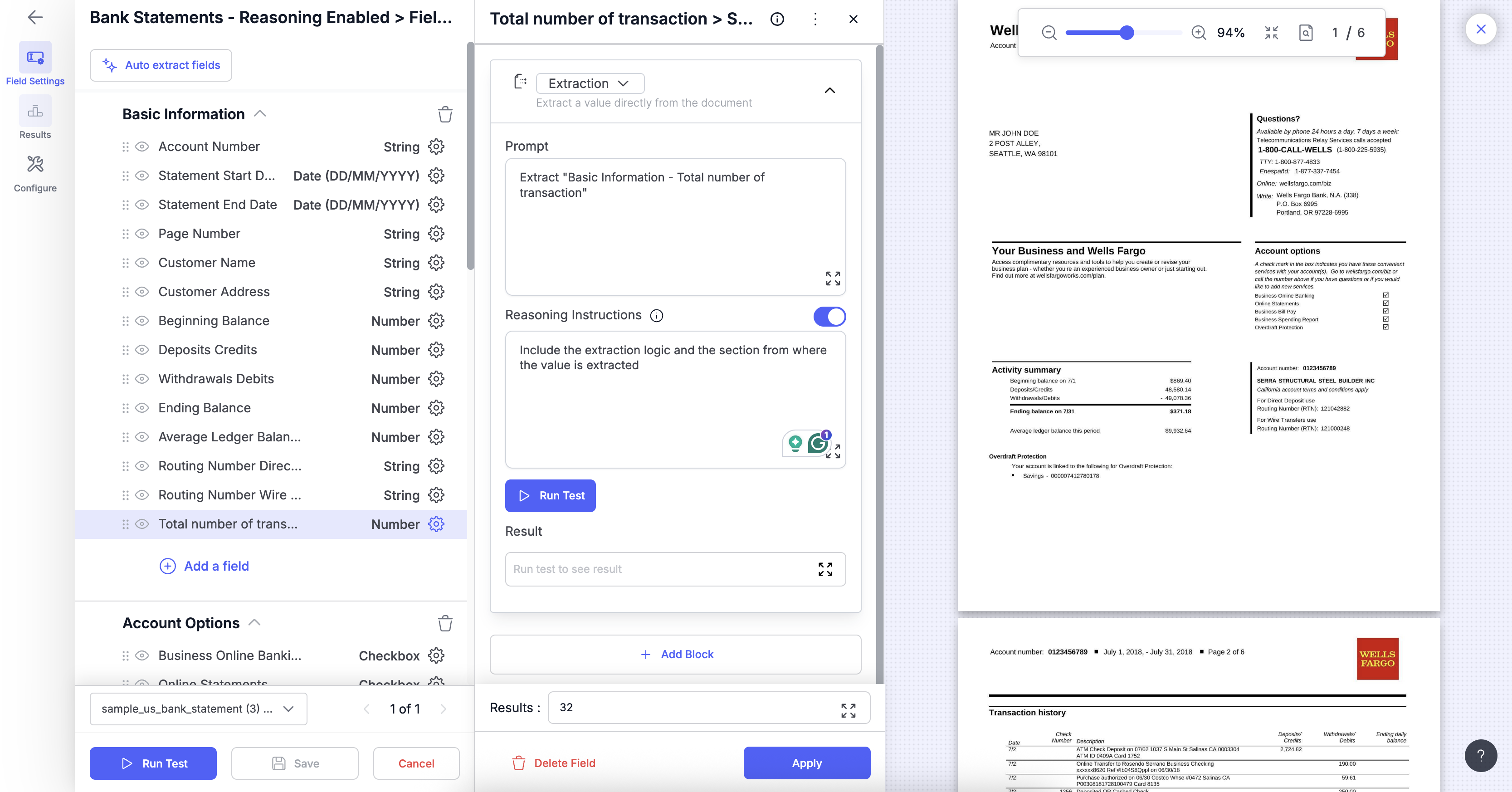
Navigate to Field Setup of the document type you wish to edit.
-
Select the specific field you want to configure extraction reasoning and open Settings.
-
In the Extraction block, toggle the Reasoning Instructions to "On."
-
(Optional) In the prompt input, provide a specific instruction for the AI, such as: "Include a brief explanation in the 'reasoning' field, citing the controlling document(s) and section(s)."
-
Click Save to apply the changes to future extractions.
How to View the Results
Once configured, you can review the AI’s reasoning and confidence across different views in the platform.
1. Review Screen: Confidence Indicators
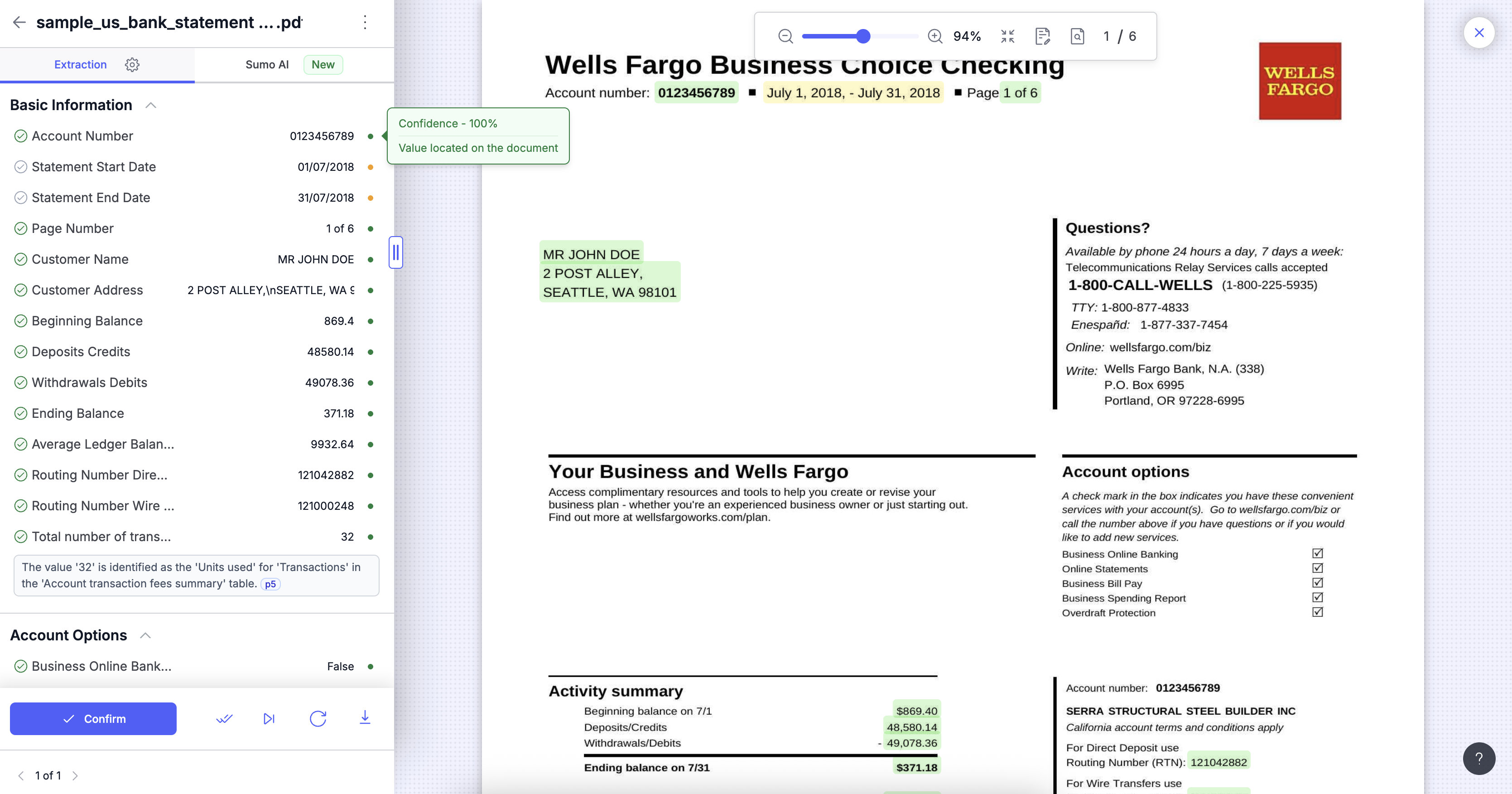
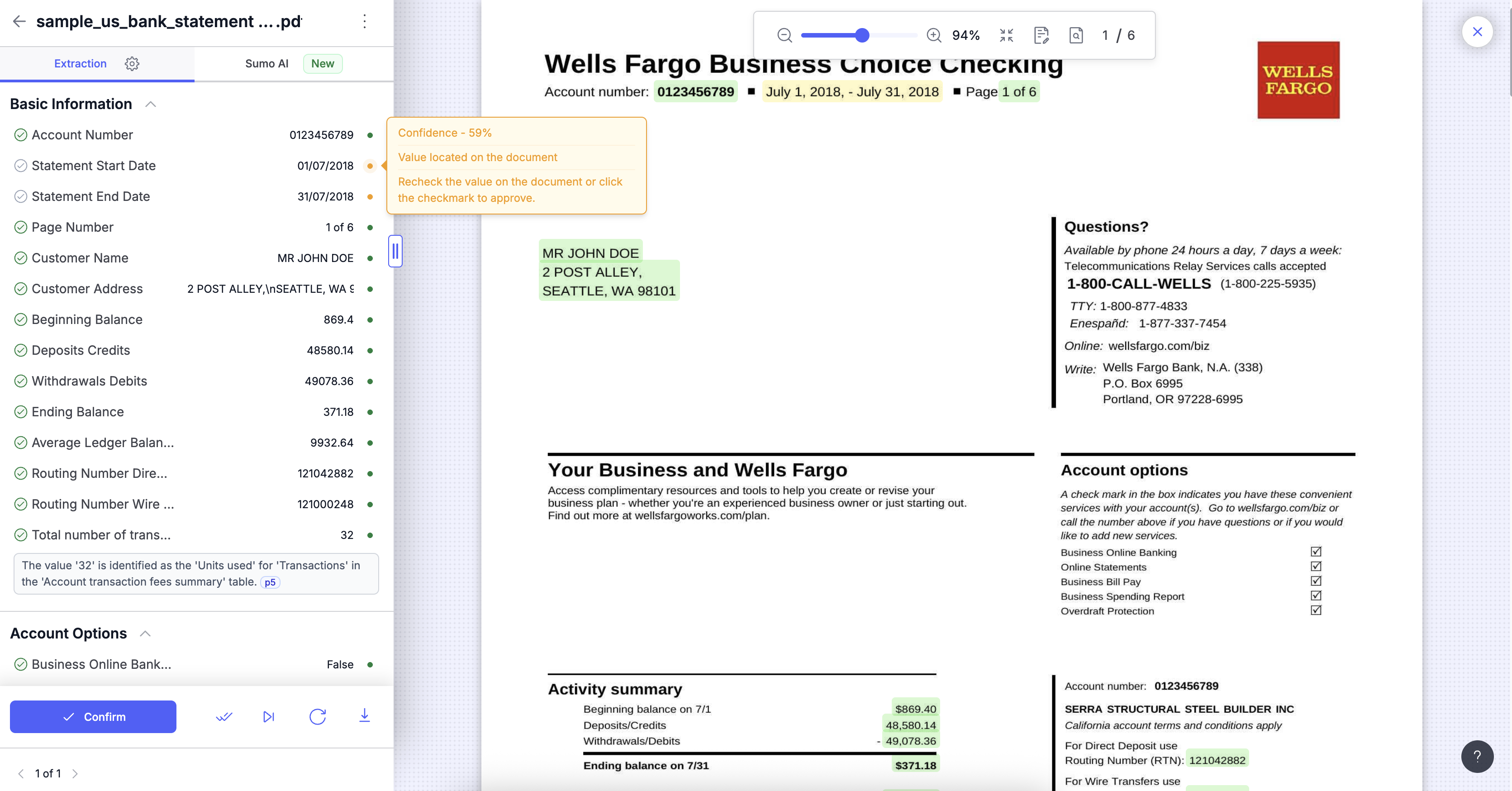
Every extracted value shows a color-coded indicator to help you prioritize your review:
-
High Confidence (Green): Hovering over a green dot displays the score and confirmation of why the model is confident.
-
Low Confidence (Orange): An orange dot indicates a lower score and provides a warning, advising the user to recheck the value.
2. Review Screen: Reasoning & Interactive Citations
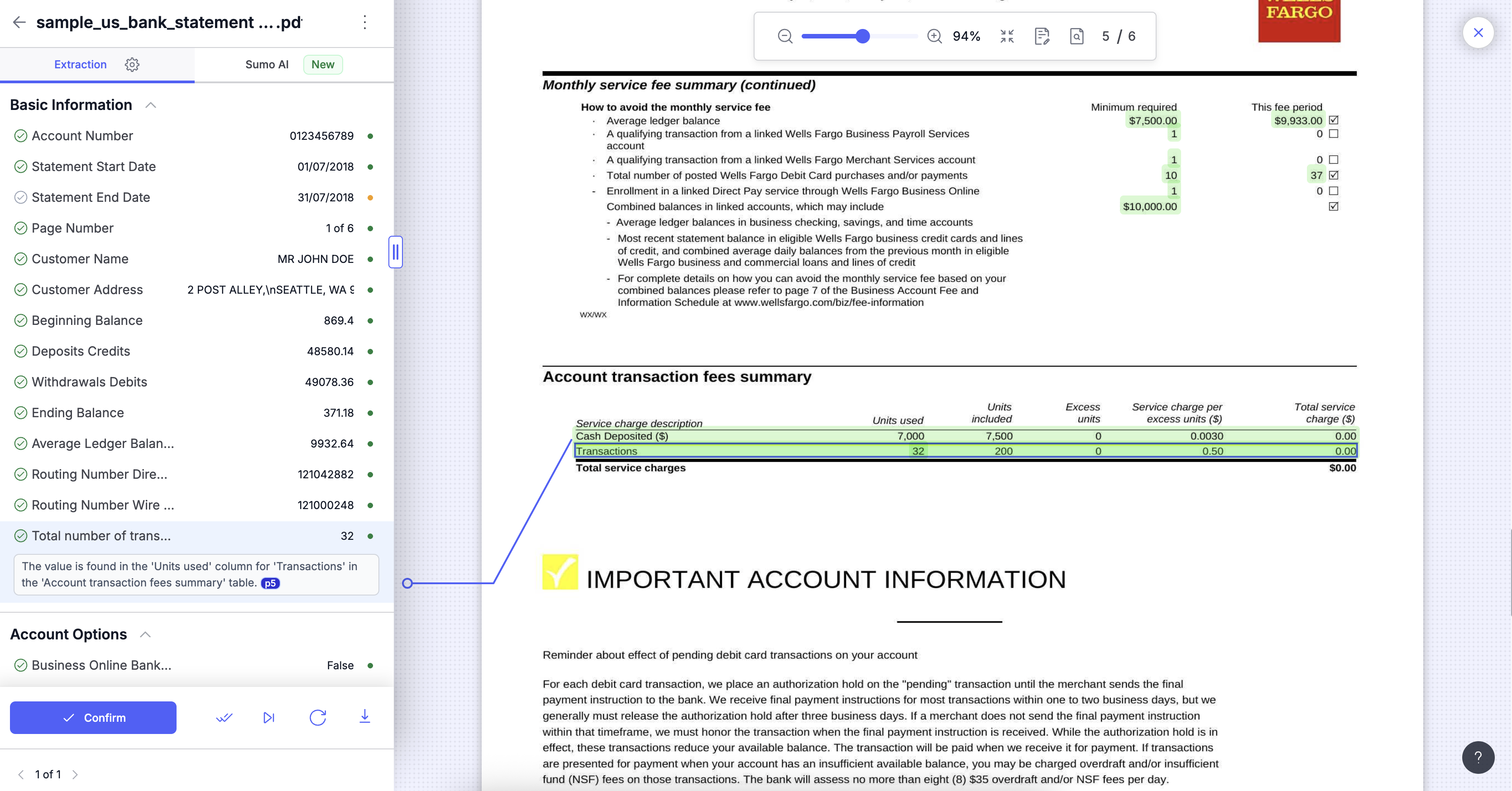
Below the extracted value, you will see a text block containing the AI's logic. This block includes blue citation tags (e.g., p18, p21). Clicking these tags will draw a connection line, and highlight the exact source text in the document viewer, such as a specific "Account transaction fee summary" section.
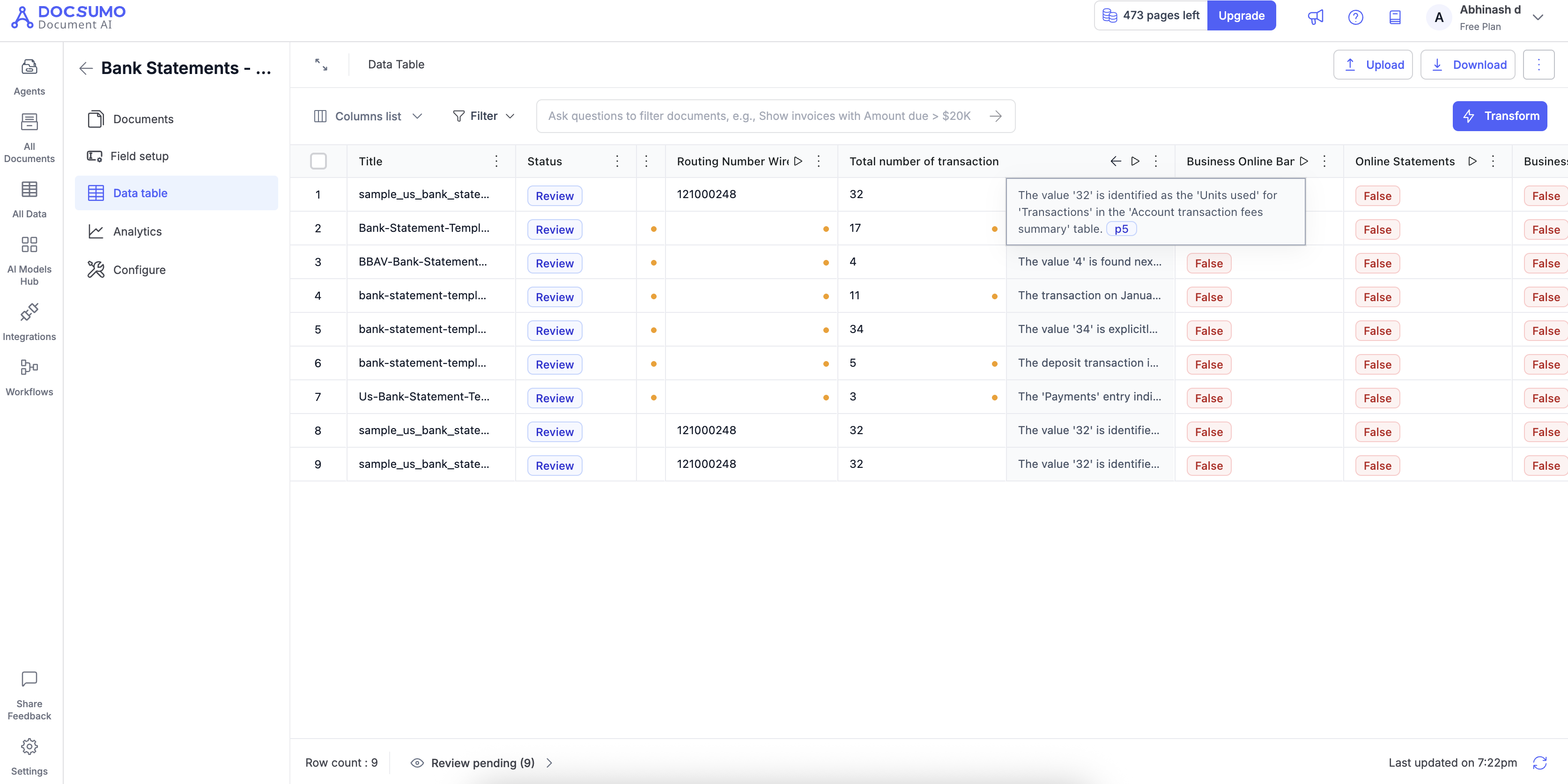
3. Data Table View
You can also audit reasoning without opening individual documents. In the Data Table, cells with low confidence are marked with an orange indicator. Double-clicking over the cell will display the full reasoning text and the relevant document sections used to derive that data.
This feature is essential for high-stakes document processing where accuracy is non-negotiable. By leveraging reasoning and visual confidence cues, your team can reduce the time spent on manual "ctrl+f" searches and focus only on the fields that truly need attention.
Need Help?
If you face any issues or have feedback, reach out to our support team at [email protected] or use the in-app chat.
Updated 9 months ago