
Trigger Blocks
Overview
Every workflow starts with exactly one trigger block. It is always the first block, it decides when the workflow runs, and it decides which kind of workflow this is.
| Block | Runs when... | Kind of workflow |
|---|---|---|
| Upload | Files arrive by upload, email or API. | Case workflow with Upload as: Case. Workflow with Upload as: Files. |
| Schedule | A scheduled time comes round. Times are UTC. | Workflow |
| Case Event | A case moves to a stage you choose. | Workflow |
| Manual | A person chooses to run it. | Workflow |
A new canvas opens on Add a trigger. Until you choose one, the rest of the block library is disabled.
While the workflow is a draft you can delete the trigger and choose another. The first publish fixes it. On a published workflow the trigger's delete button is disabled, with a tooltip saying why, and the kind cannot change. You can still edit the trigger's settings. To start over with a different trigger, duplicate the workflow.
Upload
Run the workflow when files arrive. One block covers all three sources: file upload from the editor, email, and API.
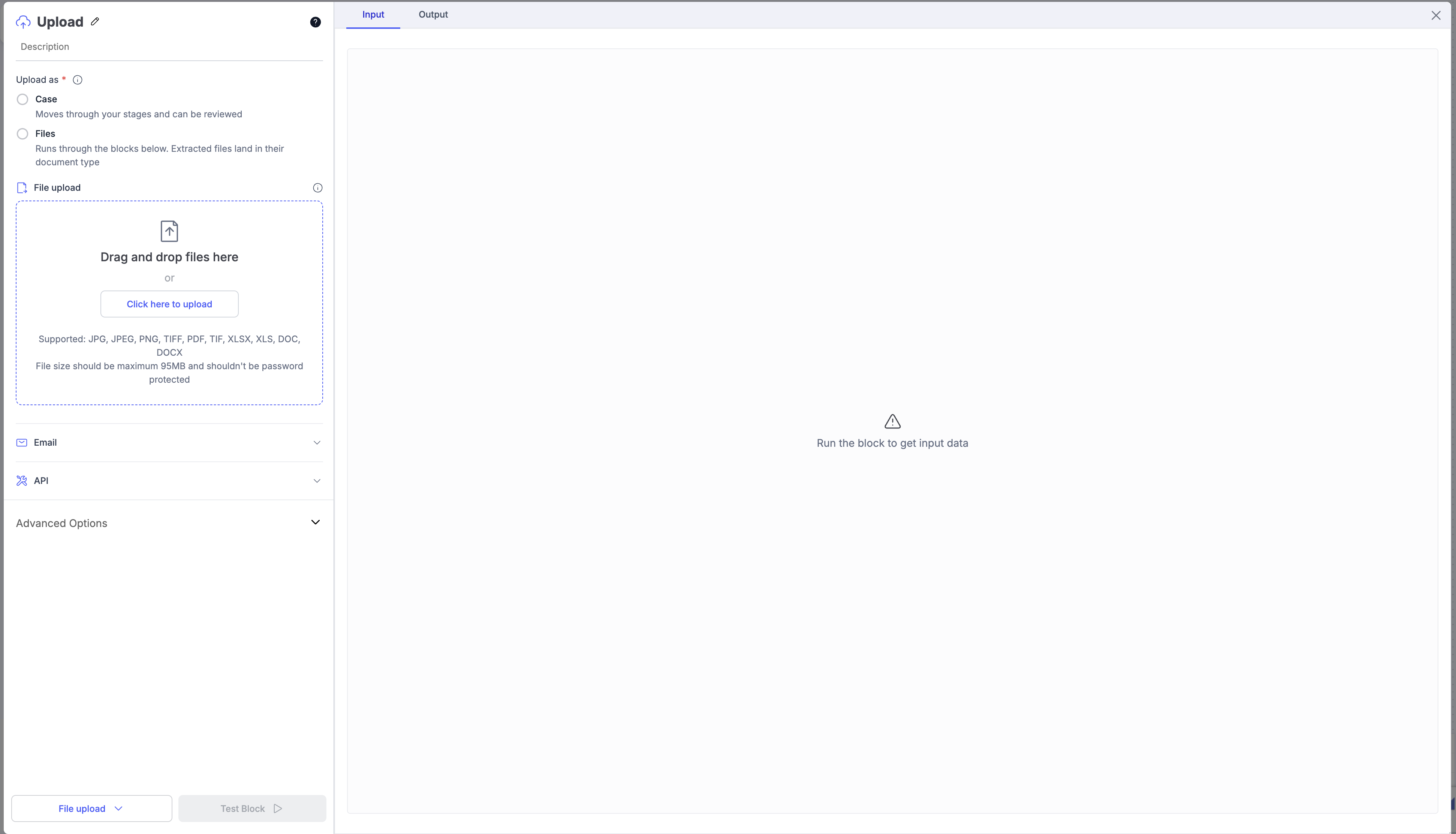
Upload as
The first setting decides what an upload becomes, and with it the kind of workflow.
| Option | What happens | Kind |
|---|---|---|
| Case | Each batch of uploaded files becomes a case in this workflow's case type. The case moves through your stages and can be reviewed. | Case workflow |
| Files | The files run through the blocks below. Nothing is created unless a block does so. Files that pass through a Data Extraction block land in their document type. | Workflow |
Can't be changed after publishing. Once published the chip reads Fixed at publish. To switch, duplicate the workflow.
When you choose Case, a case type is created for this workflow and shown under the option, with an Open link to its configuration. A draft that still has no case type shows This workflow needs a case type before it can be published. Create one.
Sources
File upload
Drop files here to run the workflow from the editor. Files added here are used for editor runs only; they are not a production upload path.
Email
Every workflow has its own address.
- Test Credentials toggle: on shows the Test address, used to test and debug before publishing. Off shows the Email address for real data. The live address appears once the workflow is published.
- Import email body: the email's contents are imported as an image for classification and extraction.
- Notify on failure: notifies you of email ingestion errors and explains the cause. Enter the recipient email address.
API
The endpoint and credentials for sending files programmatically, with ready-made snippets.
Advanced Options
File filters. Describe in plain language which files should move forward, for example only PDFs larger than 5 KB whose name contains "invoice". Docsumo generates the filter code, which you can review. The filter applies to every source.
Testing
Click Test Block in the panel footer.
- With files in File upload, the run starts immediately.
- With Email or API selected, the panel waits for an email or a call to arrive at the test address or endpoint, then runs.
If nothing is staged the button is disabled: Add a file to test this source, or switch to Email or API.
After publishing, files sent to the live email address or endpoint start a production run.
Schedule
Run the workflow repeatedly at times you set. All times are UTC.
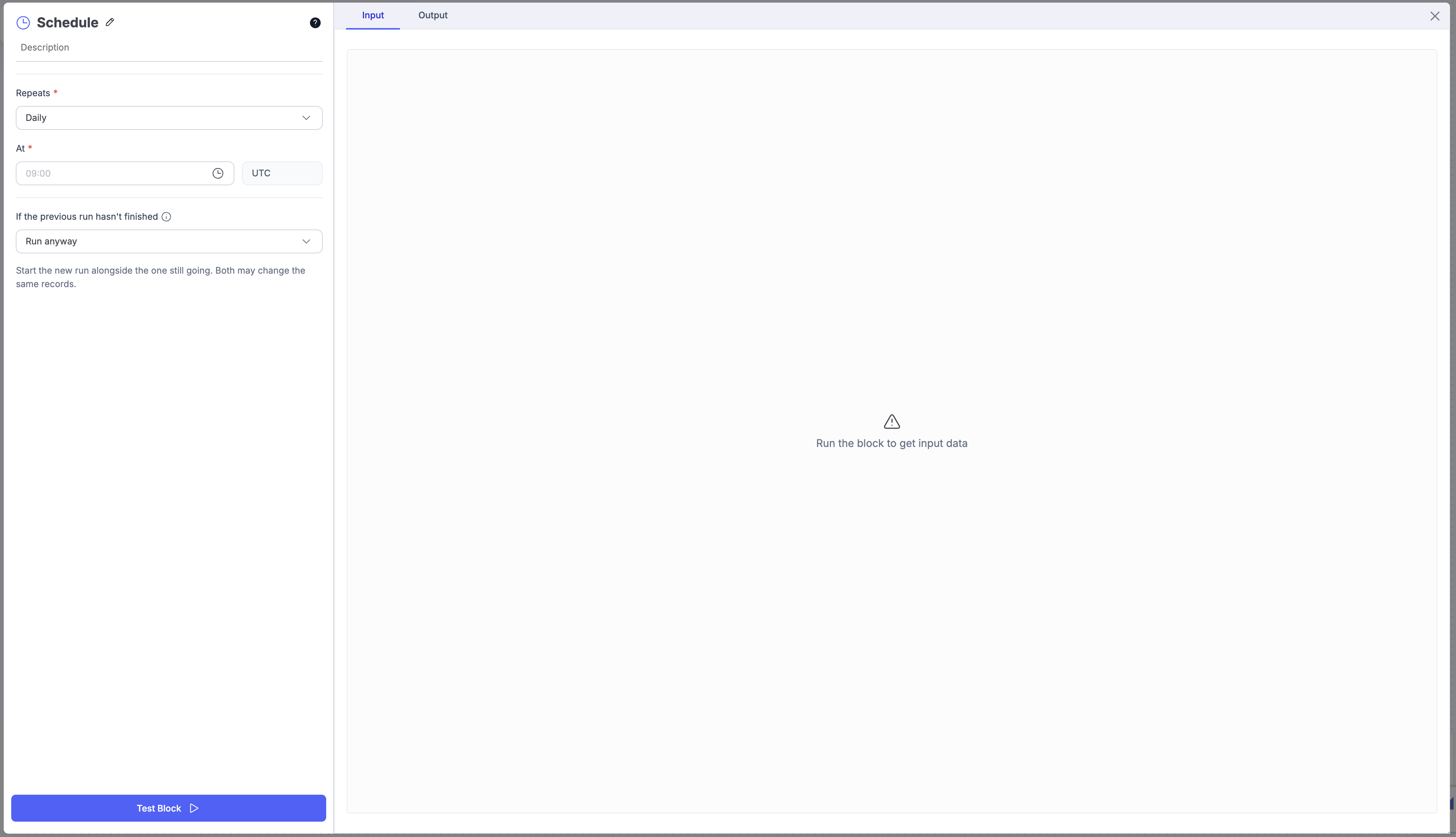
Settings
| Field | Description |
|---|---|
| Repeats | Daily, Weekly or Custom (cron) |
| On | Weekly only. The days of the week to run |
| At | The time of day, 24-hour, in UTC. For example 09:00 |
| Expression | Custom only. A five-field cron expression: minute, hour, day, month, weekday. For example 0 9 * * 1-5 runs weekdays at 09:00. Click the info icon for the syntax |
| Next 3 runs | A live preview of the next three times the workflow will run, so you can check the schedule before publishing |
| If the previous run hasn't finished | What to do when a scheduled time arrives while the last run is still going. See below |
Under the fields the block reads the schedule back in plain language, for example Every day at 09:00 or Weekdays at 09:00.
Runs must be at least 5 minutes apart. An expression that runs more often is refused with a message showing the actual interval.
If the previous run hasn't finished
| Option | Behaviour |
|---|---|
| Run anyway (default) | Start the new run alongside the one still going. Both may change the same records. |
| Skip this run | Nothing starts this time. The workflow waits for its next scheduled time. |
A run that is waiting for an approval does not count as unfinished, so an open Human in the Loop step never stops the schedule.
Pausing a schedule
Use Disable auto-run in the workflow's row menu in Agents Builder. The workflow stays published, but does not start on its own until you choose Enable auto-run. The editor shows a Paused chip and a banner while auto-run is off. You can still run the workflow by hand with Run.
Testing
There is nothing to supply, so the panel shows Run now. The run starts immediately, as if the schedule had fired.
After publishing, the Next Run column in Agents Builder shows when it will run next.
Case Event
Run the workflow when a case moves to a stage you choose. This is the only trigger that hands the workflow a case: the blocks below receive its fields, stage, status and documents.
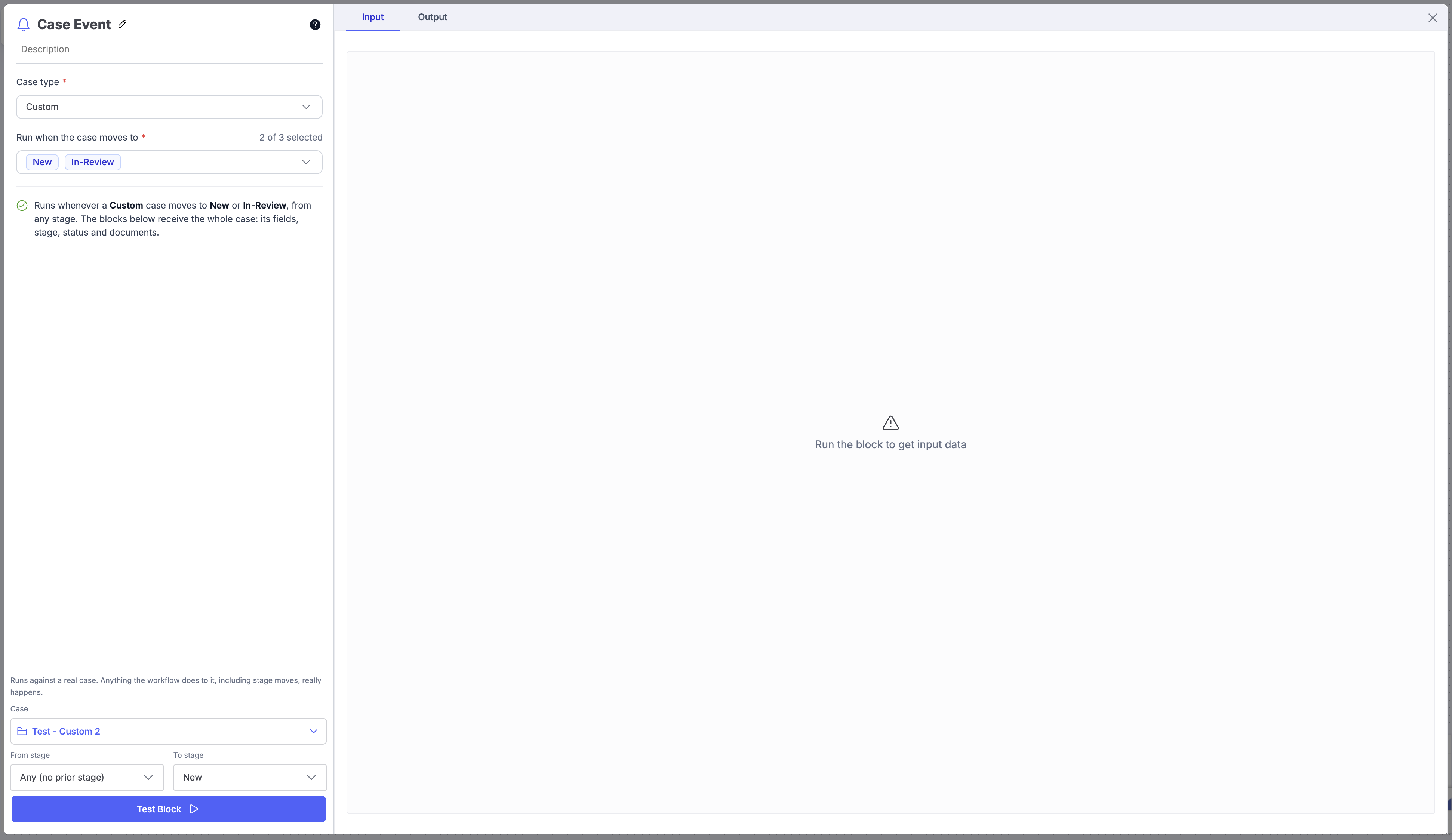
Settings
| Field | Description |
|---|---|
| Case type | The case type to watch. Choose this first |
| Run when the case moves to | One or more stages of that case type. The workflow runs whenever a case enters any of them, from any stage |
The block reads the rule back, for example: Runs whenever a Merchant Cash Advance case moves to In-Review or Done, from any stage. The blocks below receive the whole case: its fields, stage, status and documents.
If a Case Update block in the same workflow moves cases to a stage this trigger listens for, the panel warns you: a run can trigger itself, and there is no loop protection. Use a different stage, or a separate workflow.
Use one workflow per job. If two stages need different behaviour, build two workflows rather than branching inside one.
Testing
Pick a real case in the panel footer. It lists the most recent cases of the selected case type, with search. The run acts on that case: anything the workflow does to it, including stage moves, really happens.
After publishing, the workflow runs whenever a case of that type moves to one of the selected stages, whether the move was made by a person, by the case's own workflow, or by the API. You can pause it with Disable auto-run.
The case type's Configure → Workflow page lists every workflow that reacts to its stages, so you can see what a stage change will set off.
Manual
Run the workflow when a person chooses to run it. The block has no settings. Its panel reads: Nothing starts this workflow on its own. A person runs it.
Running it
- From the editor: Run Flow, or Run now in the Runs panel, runs the current draft.
- From Agents Builder: Run in the row menu runs the published version. This is a production run, not a test.
Run is available in the row menu of any workflow that is not a case workflow, whatever its trigger. A scheduled workflow can be run ahead of time; a Case Event workflow can be run without waiting for a stage change.
Older workflows: File Upload, Email Document Upload, API Ingestion
Workflows created before trigger blocks start with one of three separate ingestion blocks. They continue to work, and their settings are unchanged.
| Block | Description |
|---|---|
| File Upload | Documents uploaded from the editor. Advanced Options hold optional file filters. |
| Email Document Upload | Attachments from incoming emails. Test Credentials toggle for the test address, File Filters, Notify on Failure and Import Email Body under Advanced Options. |
| API Ingestion | Documents sent by REST API. Test Credentials, the workflow ID, your API key and code snippets for cURL, Python, Node.js, Ruby and PHP. |
New workflows use the Upload trigger, which offers all three sources in one block.
Updated about 1 month ago