
Sumo AI: Your AI Assistant in Docsumo
Ask questions, analyze files, fix extracted data and build workflows in plain language. Sumo AI shows you every change before it makes it.
Overview
Sumo AI is the assistant built into Docsumo. Ask it about your documents, document types and workflows in plain language. It can answer, analyze files you attach, fix extracted data, and set things up for you. Before it changes anything, it shows you what will change and waits for your approval.
With Sumo AI you can:
- Get answers about your account. For example: document counts and statuses, why documents failed, which fields get corrected most, and how a workflow is set up.
- Analyze files. Attach a spreadsheet, PDF or image and get a summary, a table, an Excel report or a chart back.
- Fix extracted data in review. Correct fields and line items in bulk, fill or clear columns, and compute values.
- Set up document types. Add or change fields, sections, tables, extraction prompts and settings, and upload sample documents.
- Build and run workflows. Describe the process. Sumo AI adds the blocks, routing and exports, tests the workflow, and asks before publishing.
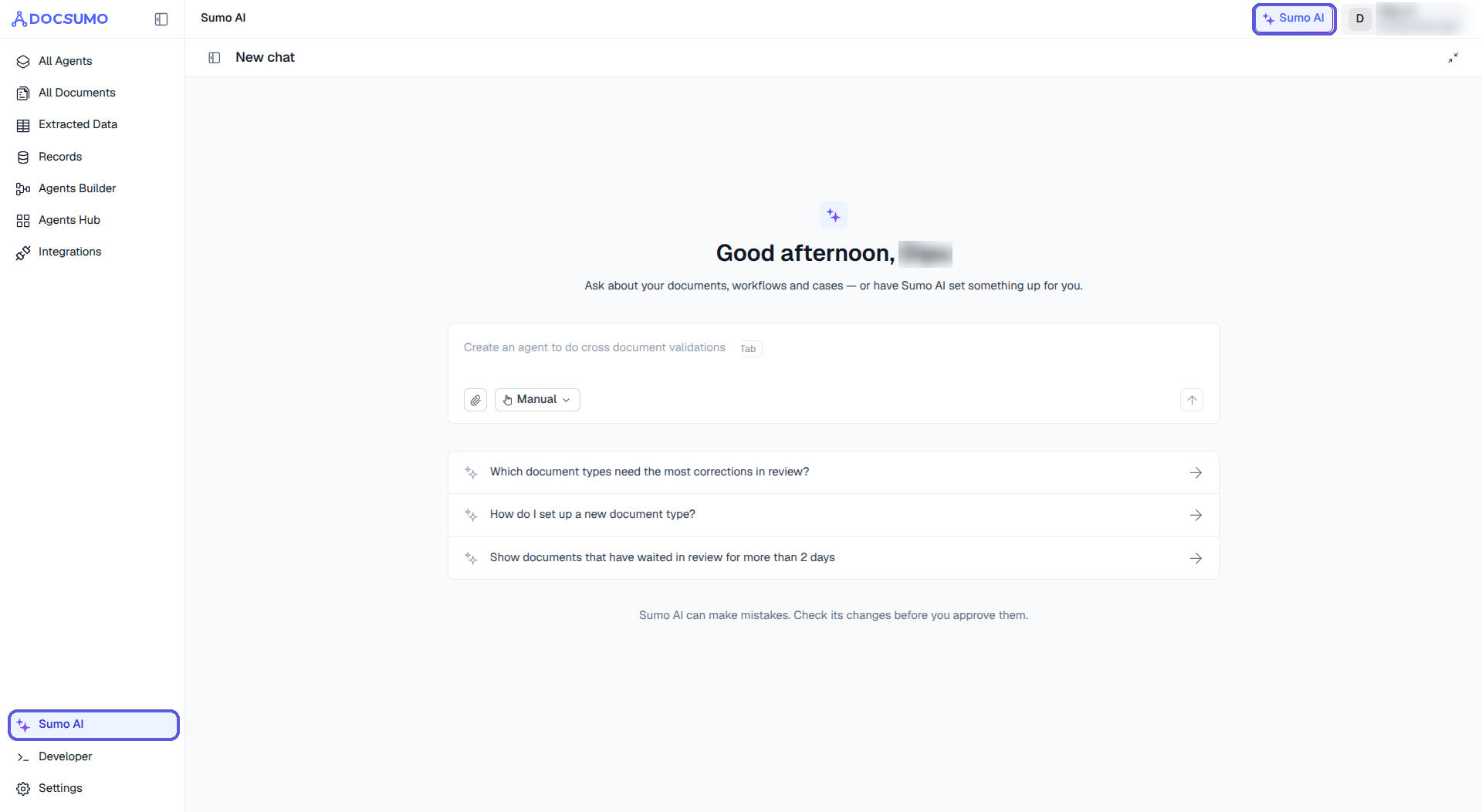
Open Sumo AI from the left menu, or from the Sumo AI button at the top of any page
Where to find Sumo AI
| Where | How to open it | What Sumo AI can see |
|---|---|---|
| Sumo AI home | Sumo AI in the left menu | Your whole workspace. Past conversations are listed on the left. |
| Side panel on any page | Sumo AI button at the top right | The page you're on. If you select documents first, it answers about just those (you can also click Ask Sumo AI in the bulk-action bar). |
| Review screen | Opens beside the document (click Sumo AI if it's closed) | The document, its extracted fields and tables, plus the rest of your workspace. Suggestions are tailored to the document. |
| Workflow builder | Opens next to the canvas in Agents Builder | The workflow, its blocks and its runs. Publishing always asks you first. |
A chip above the message box shows what Sumo AI is looking at, for example All Documents · 3 documents or InvoiceLine · table. Click × on a chip to remove it from the question.
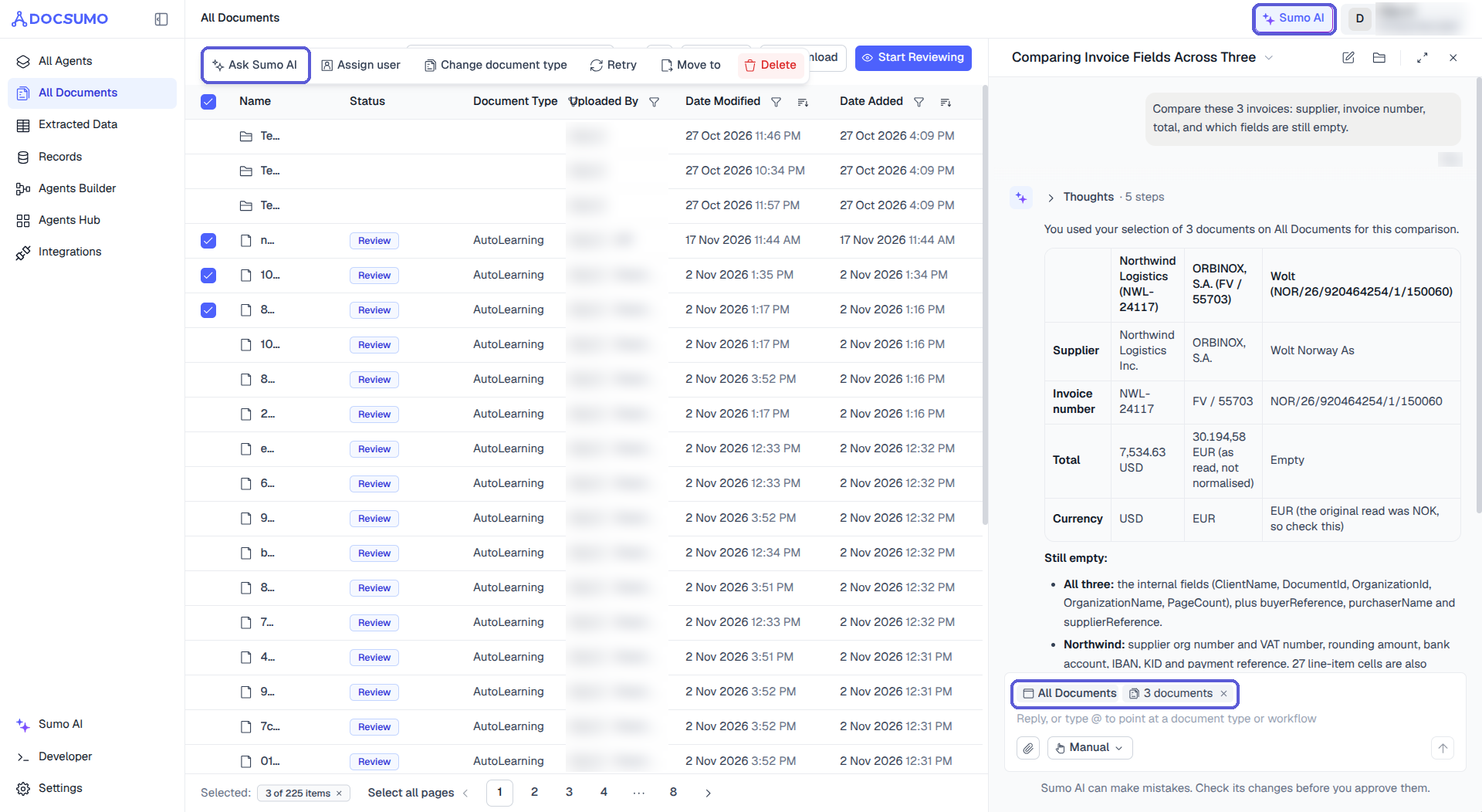
Select documents, then ask. Sumo AI answers about your selection.
Using the earlier Sumo AI? The Ask a Question and Edit Table options in the review screen are now one chat. Type what you need in your own words.
What to ask
| You want to… | Try asking |
|---|---|
| Find documents | "Show documents that have waited in review for more than 2 days." |
| Understand results | "Which fields get corrected most on @Invoices?" |
| Analyze a file | "Summarize spend by vendor, list overdue invoices, and give me an Excel report with a chart." |
| Upload documents | "Upload these invoices to @Invoices and tell me when they're ready to review." |
| Change a document type | "In @Deal Summary, add a Closing Date field formatted DD/MM/YYYY." |
| Fix extraction | "Due dates on @Invoices come out empty on some documents. Find out why and fix it." |
| Fix review data | "Fill the empty unit cells in the line items from each description." |
| Build a workflow | "Create a workflow that sends invoices over $10,000 to a reviewer for approval and exports the rest to CSV." |
Type @ to point at a document type, a workflow or, in the review screen, a field. Pointing at it means Sumo AI doesn't have to guess which one you mean.
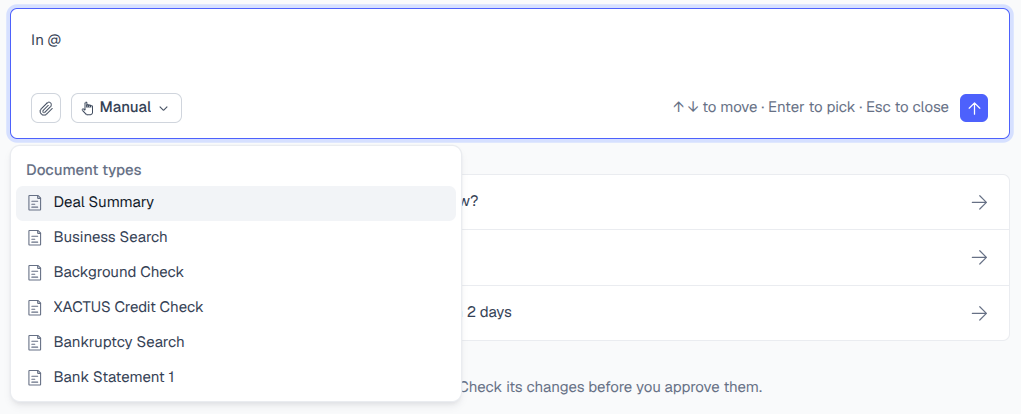
Type @ to point Sumo AI at a document type or workflow.
Analyze a file and get a report
- Click the paperclip in the message box and choose your files. Supported types are PDF, PNG, JPG, TIFF, XLSX, XLS, CSV, DOCX, TXT and MD, up to 25 MB each.
- Describe what you want and what format you want it in.
- Sumo AI reads the file, works out the numbers, and replies with the results. Files it creates appear as cards you can download.
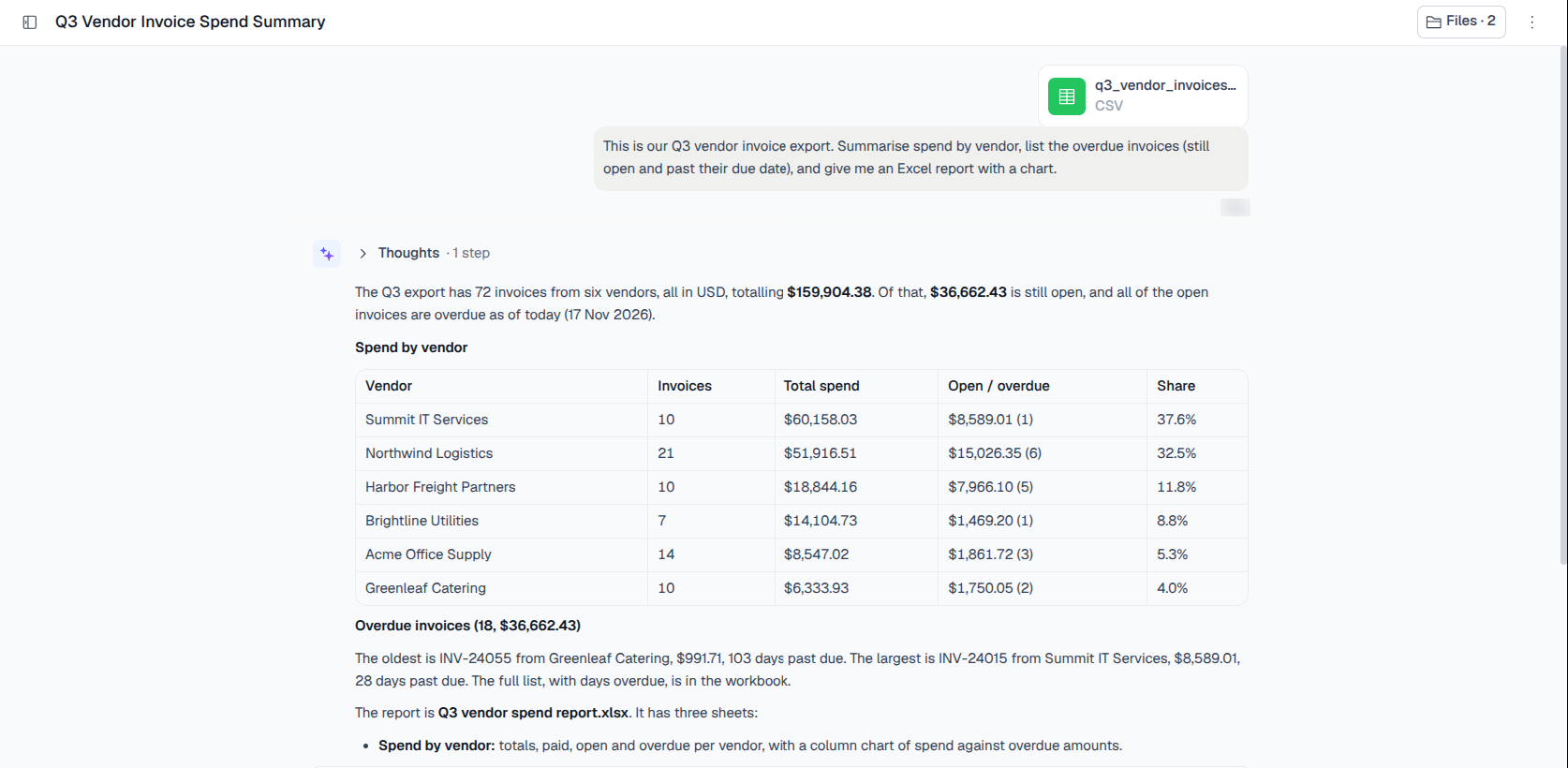
A real request: a Q3 invoice export becomes a spend summary and an Excel report.
Everything you attach and everything Sumo AI creates is kept with the conversation. Click Files at the top of the chat to open the Files panel. Generated files are under Artifacts and the files you attached are under Your uploads.
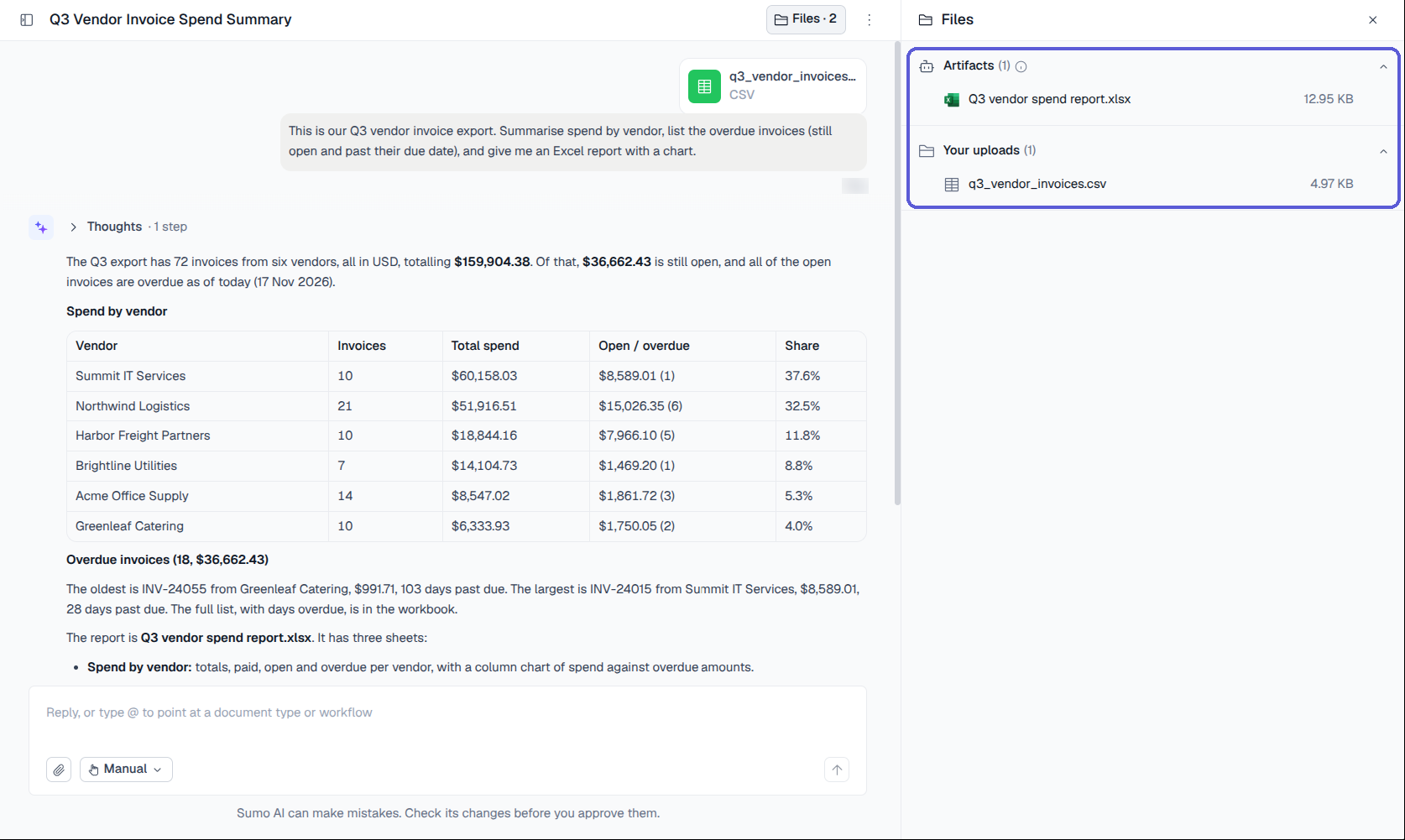
Download generated reports from the Files panel.
Note: Files are analyzed in an isolated environment with no internet access, so Sumo AI can't open web links or fetch outside data. Attach the file instead.
Stay in control: approvals and modes
Approve, reject or request changes
When a request would change something in your account, Sumo AI shows a card with exactly what will change. Nothing is saved until you choose one of these:
- Approve applies the change as shown.
- Reject discards it. Nothing changes.
- Request changes tells Sumo AI what to adjust, and it comes back with a revised card.
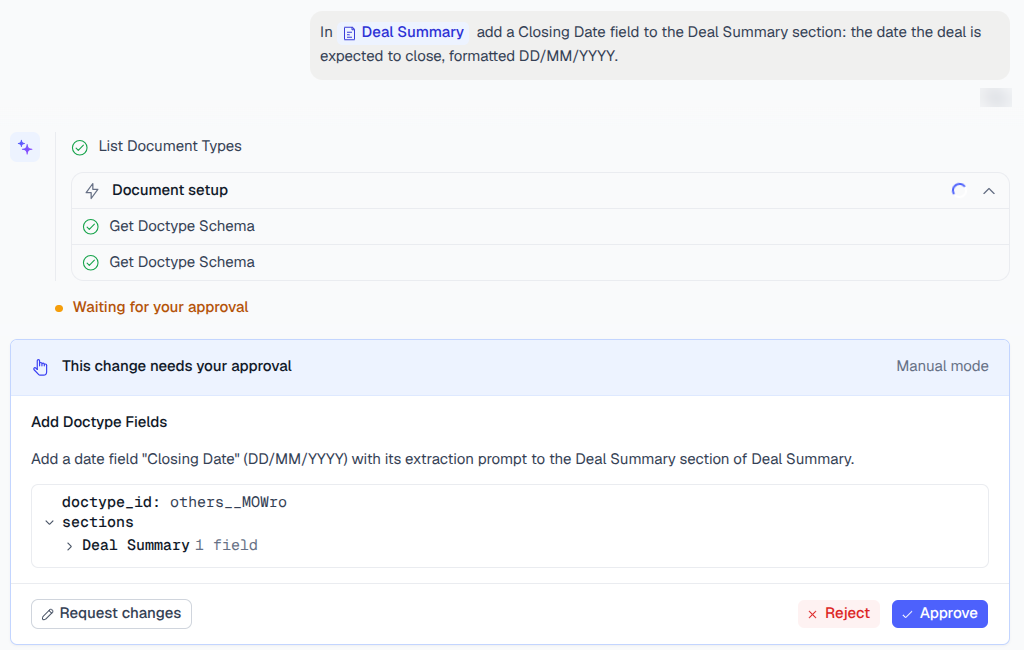
Sumo AI explains the change and waits. Expand the details to see exactly what will be saved.
If a request could mean more than one thing, Sumo AI asks first. You'll see a short question with options. Pick one or type your own answer.
Choose a mode
Use the mode menu under the message box to decide how much Sumo AI can do without asking:
| Mode | What happens |
|---|---|
| Manual (default) | Asks for approval before making any update. |
| Auto | Approves actions that pass a safety check, and pauses for anything risky. |
| Plan | Presents a plan before making any change. Accept the plan in Auto or Manual mode, reject it, or request changes. |
Some actions always ask, even in Auto mode. For example, publishing a workflow always needs your approval.
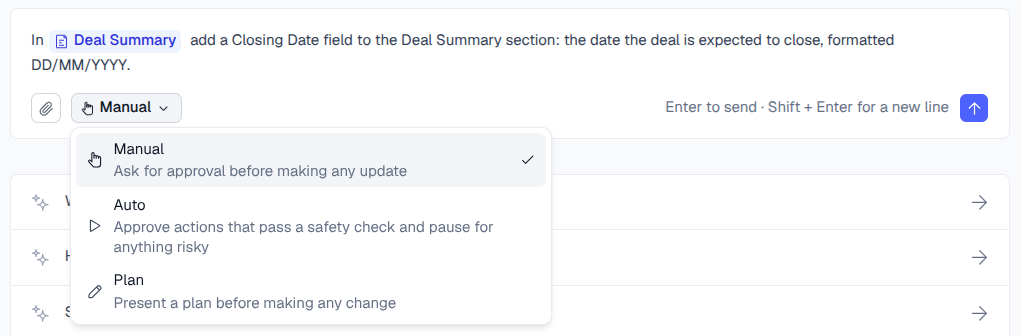
Pick a mode per conversation. Manual is the default.
Fix extracted data in the review screen
Open a document in review and the Sumo AI panel opens beside it. It can:
- Answer questions about the document. Answers include links to the fields or cells they come from, so you can check them.
- Correct fields and tables in bulk. For example: set or clear a column, swap two columns, fix values to match the document, add, merge or remove rows, and compute values (e.g. quantity × unit price).
- Preview before saving. Changed cells are highlighted in the table (3 updated below) while the card waits for your approval.
- Undo on request. Ask it to undo a change it made, and it puts the earlier values back.
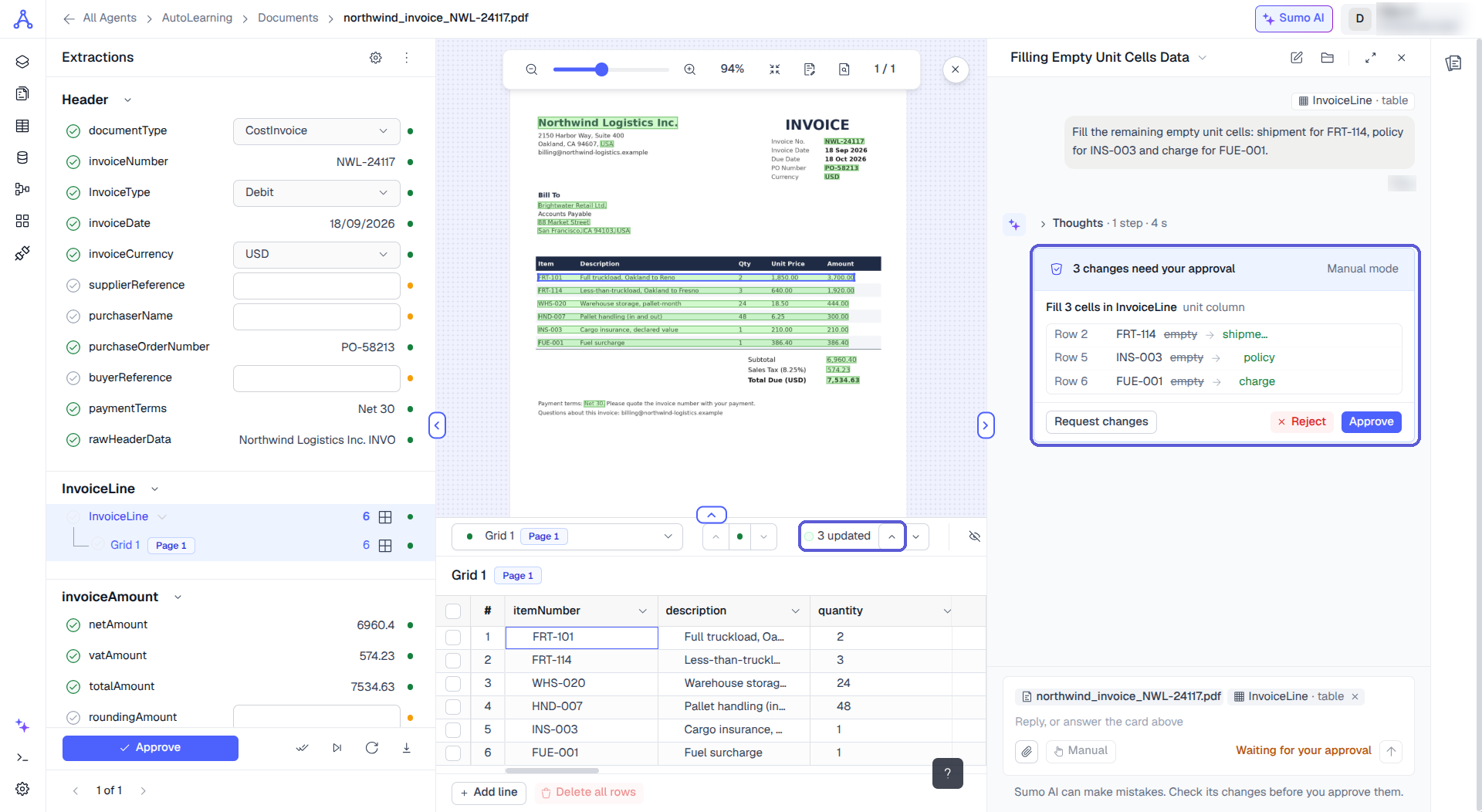
Changes are previewed in the table and saved only when you approve.
Build workflows in Agents Builder
Open a workflow in Agents Builder and describe what it should do. Sumo AI asks about anything unclear, and in Plan mode it shows a plan first. Then it adds the trigger, extraction, routing, approval and export blocks on the canvas while you watch. It can also explain a workflow block by block, test it on sample documents, and find out why a run failed. Publishing always waits for your approval.
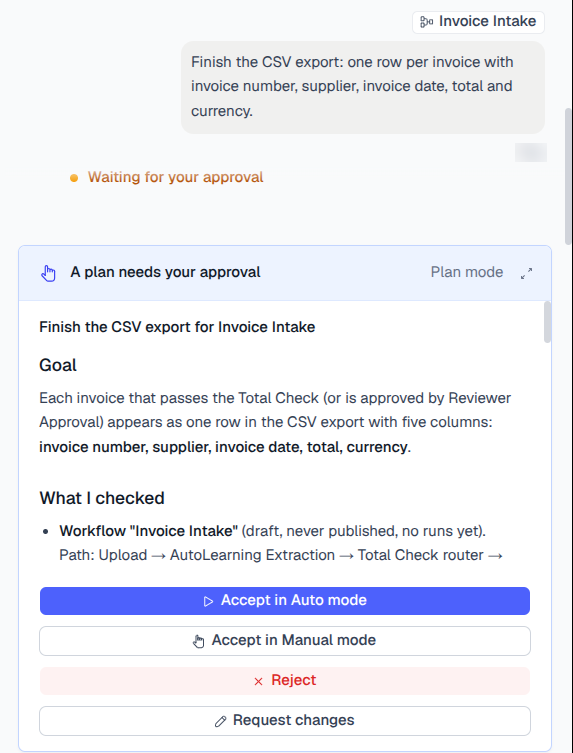
In Plan mode, Sumo AI shows the plan before it changes anything.
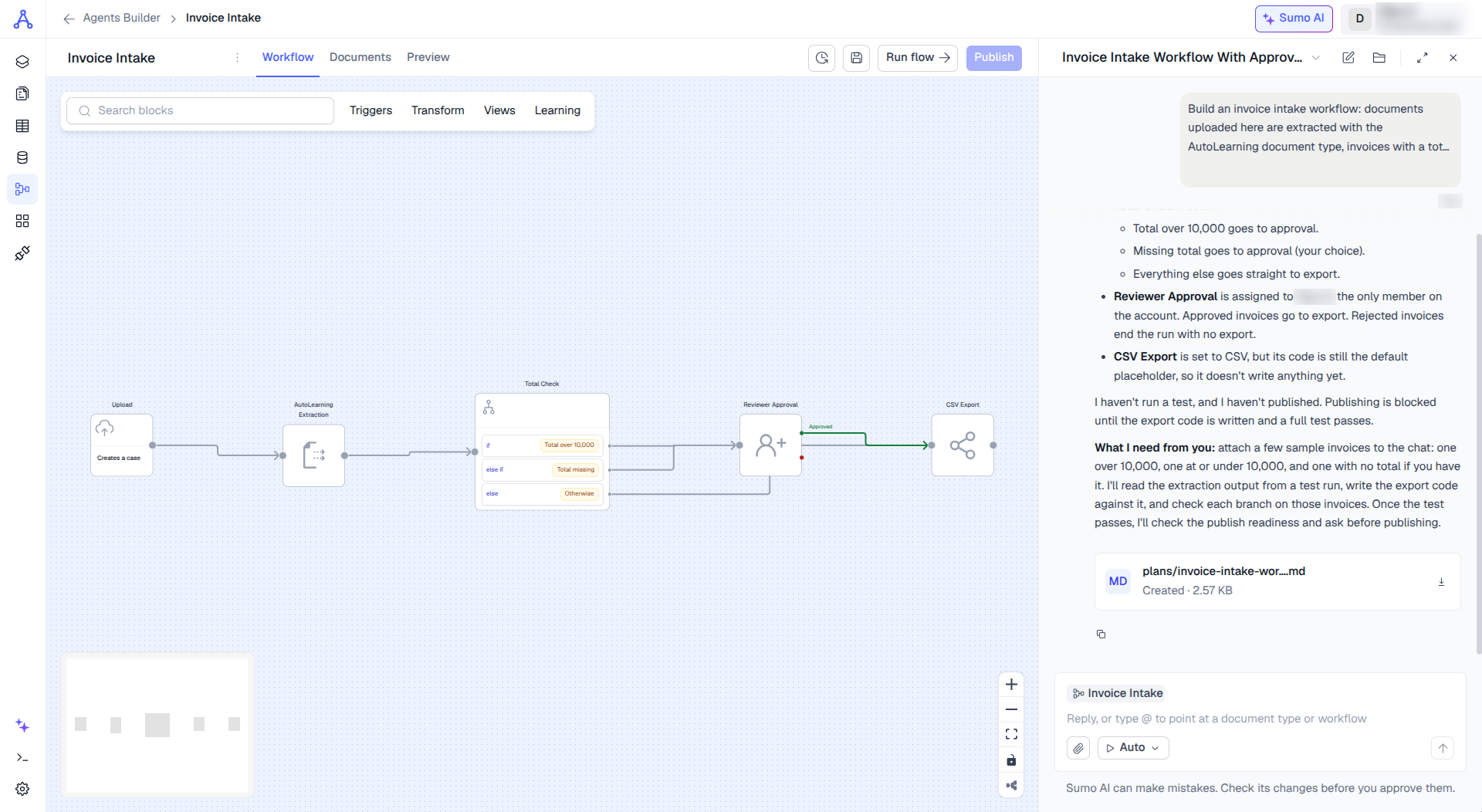
The finished workflow. Sumo AI then asks for sample invoices to test each branch before publishing.
Conversations
- Pick up where you left off. Conversations are saved on the left of the Sumo AI home page. Search them by title.
- Rename or delete a conversation from its ⋮ menu.
- See how Sumo AI got there. Expand Thoughts under an answer to see the steps it took.
- Stop at any time. While Sumo AI is working, the send button becomes a stop button.
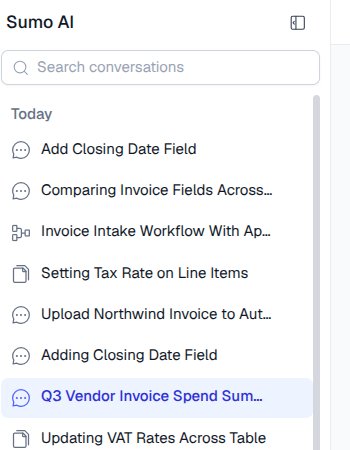
Every conversation is saved and searchable.
Tips for better results
- Name the thing. Use @ or the exact name of the document type, workflow or field.
- Say what you want back. Examples: "as an Excel file", "a table by vendor", "DD/MM/YYYY".
- Select first, then ask. Select documents in a list, or open the table in review, so Sumo AI works on exactly those.
- Use Plan mode for bigger jobs, like building a workflow or reworking a document type.
- Read the card before approving. If something is off, click Request changes and say what to change.
Good to know
- Check its work. Sumo AI can make mistakes. Review cards and answers before you rely on them.
- Credits. Documents that Sumo AI uploads or reprocesses use credits the same way as in the app.
What Sumo AI can't do
Do these in the Docsumo app instead:
- Delete document types, Records tables, cases or case types.
- Manage your account's security. It can't view or regenerate API keys, change passwords, delete the account, or change account configuration.
- Change the webhook URL.
- Manage team members. It can list members but can't invite, edit or remove them.
- Handle billing, plans or SSO.
Also keep in mind:
- No internet or outside systems. It can't open web links, call outside services or pull data from other tools. Attach the file instead.
- No background work. Sumo AI works only while it's answering you, with up to 15 minutes per request. It can't monitor things, run on a schedule, or keep working after it replies.
- Size limits. Attachments can be up to 25 MB each, with up to 30 files per message. Each analysis step can run for up to 60 seconds with 1 GB of memory, so split very large files or heavy calculations.
- Only your access. It uses your Docsumo login, so it can't see or change anything your user can't, including other organizations' data.
FAQ
Sumo AI asked me a question instead of doing the task.
Your request could be read more than one way, or something it needed was missing. Answer the question and it continues.
Can Sumo AI publish a workflow or change my settings without me?
In Manual mode, nothing changes until you approve. In Auto mode, routine changes go through after a safety check. Risky actions, such as publishing a workflow, always wait for you.
How do I undo a change?
Reject the card if the change isn't saved yet. If it's already saved, ask it to put the old values or settings back. It proposes the reverse change for you to approve.
Need Help?
If you face any issues or have feedback, reach out to our support team at [email protected] or use the in-app chat.
Updated 37 minutes ago