
Sidebar - Copliot, Chat, Form Request and more
The right-hand activity sidebar gives you quick access to collaboration, AI help, forms, tasks, logs, and sidebar settings.
The available tabs can include:
CopilotAsk AIRequest FormsTasksActivity LogSettings
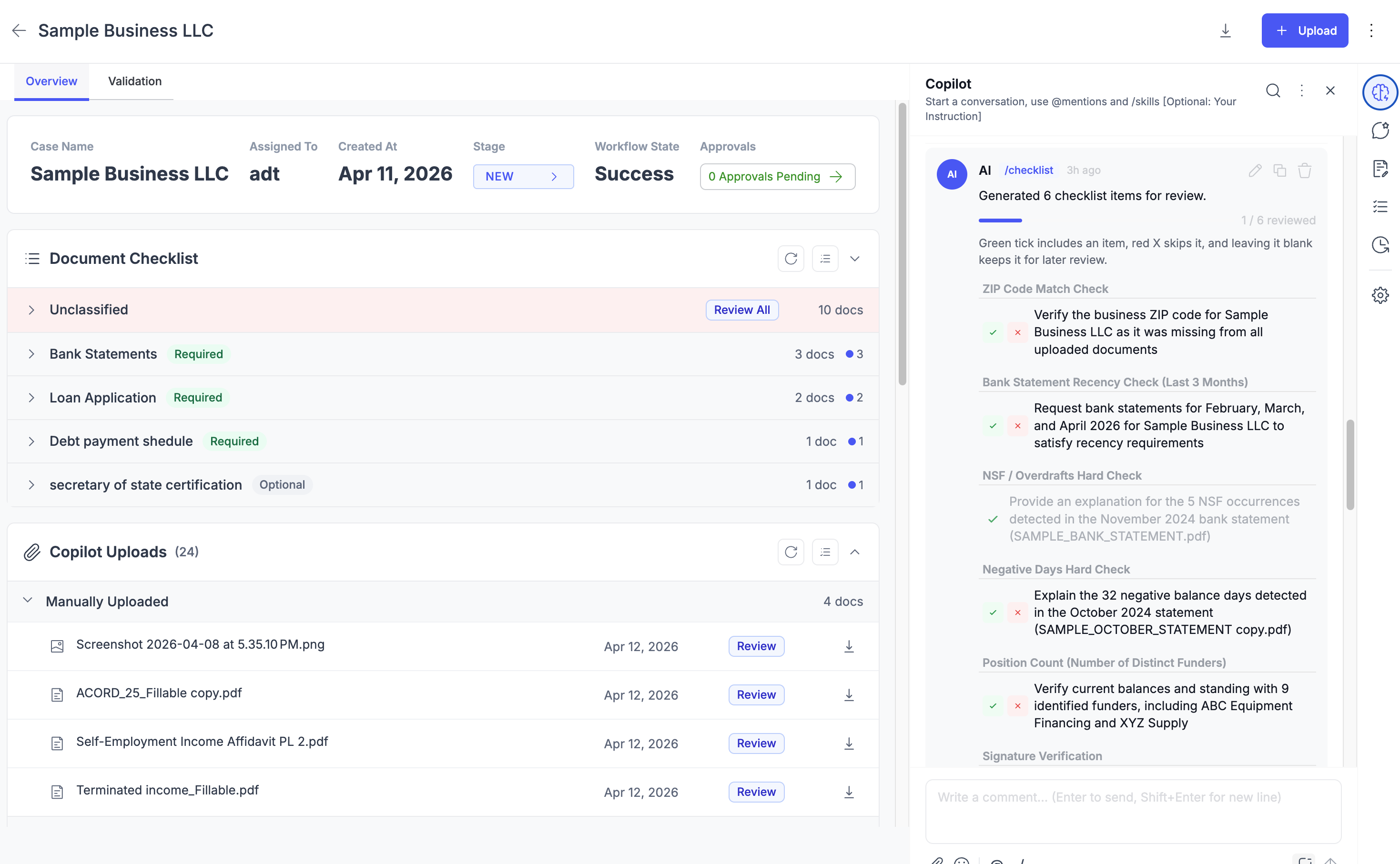
Copilot
The Copilot tab is used for collaboration and action-taking inside the case.
Writing in Copilot
The comment box supports:
Enterto sendShift + Enterfor a new line- File attachments
- Emoji picker
- Mention picker
- Skill picker
- Optional context toggle for including or excluding case context
Special Mentions
Copilot supports two system mentions:
@docsumo_support@sumo_ai
These can create special tasks that appear in the Tasks tab.
Skills
Skills are launched with /skill-name.
More detail on skill session.
Ask AI
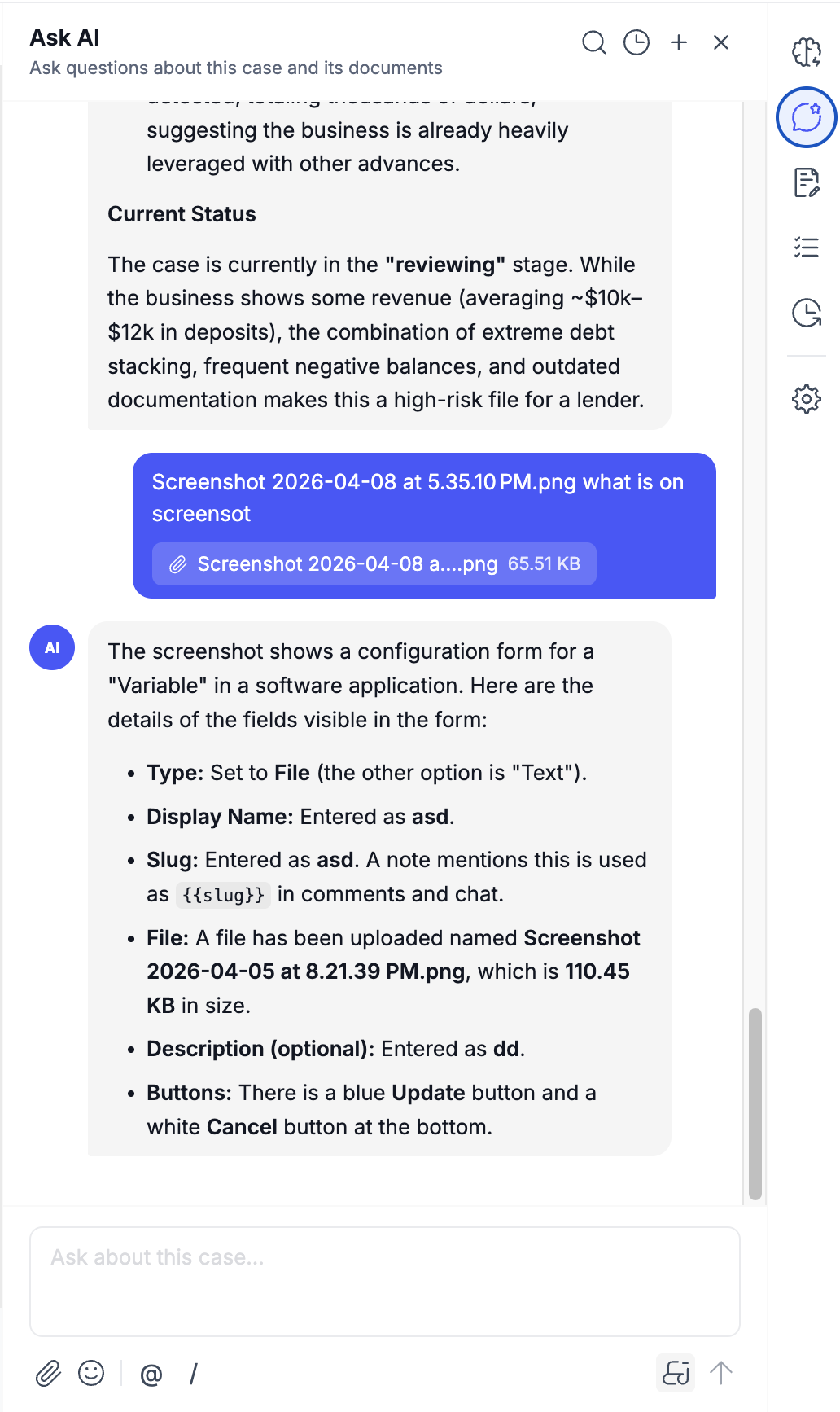
The Ask AI tab is a separate AI conversation space focused on asking questions about the case and its documents.
Plan and Working Folder
For longer AI runs, Ask AI may also show:
- A
Plansection with execution steps - A
Working foldersection with generated or in-progress files
This makes multi-step AI work easier to follow.
Request Forms
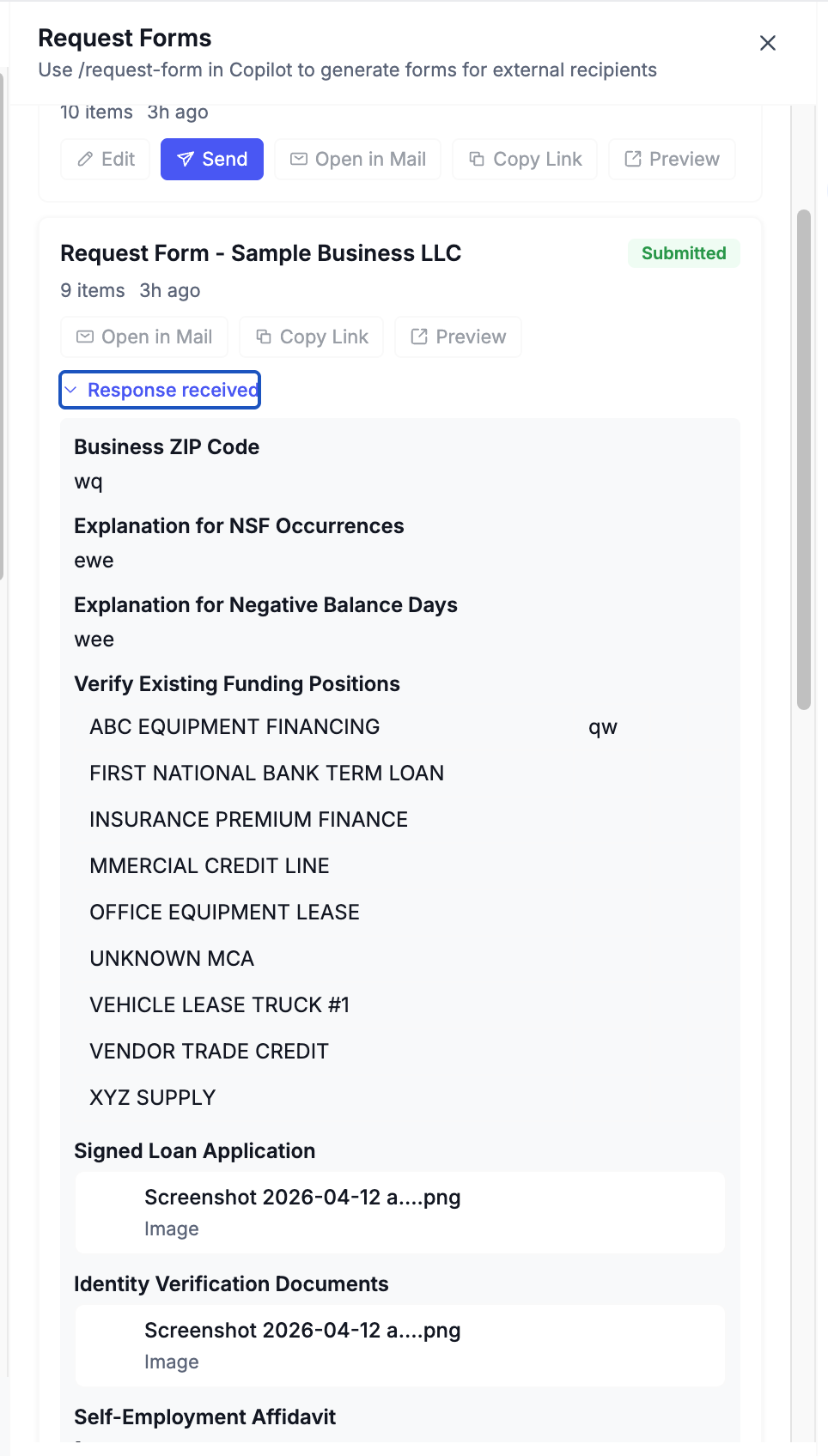
The Request Forms tab shows forms sent to external recipients. These forms are usually created from Copilot with /request-form.
Request forms can be used to collect:
- Documents
- Answers to questions
- Table data
- Signatures
- Form-template style inputs
Request Form Statuses
Draft: The form exists but has not been sent yetSent: The form was sent and is awaiting a responseSubmitted: The recipient completed the formExpired: The form is no longer active
Tasks
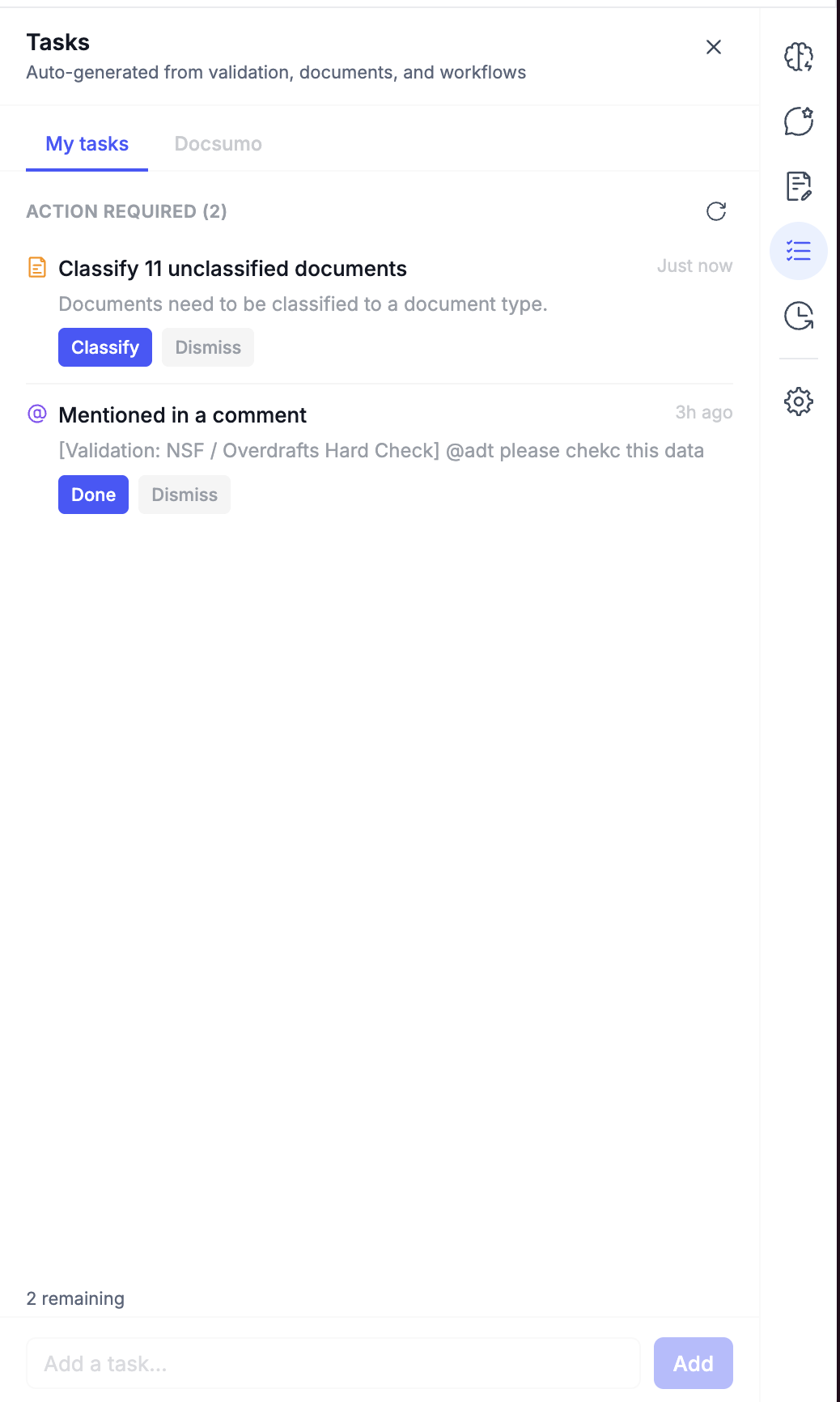
The Tasks tab is the action list for the case.
Tasks can be created automatically or manually. They may come from:
- Validation failures
- Missing required documents
- Workflow approvals
- Mentions in comments
- Unclassified documents
- Checklist items
- Manual user-created tasks
@docsumo_supportrequests@sumo_airequests
Task Views
The Tasks tab includes:
My tasksDocsumo
Inside the Docsumo view, you can switch between:
This caseAll cases
Activity Log
The Activity Log tab shows a timeline of case activity.
This includes:
- Comments and collaboration events
- Workflow-agent activity
- Case changes
- Other logged system events
Settings
The Settings tab controls sidebar visibility, automations, forms, skills, and variables for the case type.
It includes four sections:
GeneralFormsSkillsVariables
General Settings
Automation
Auto-run skill on first open
Automatically runs a selected skill the first time Copilot is opened on a case with no existing comments.
This is useful for:
- Generating a checklist
- Creating a first-pass summary
- Running a default analysis flow
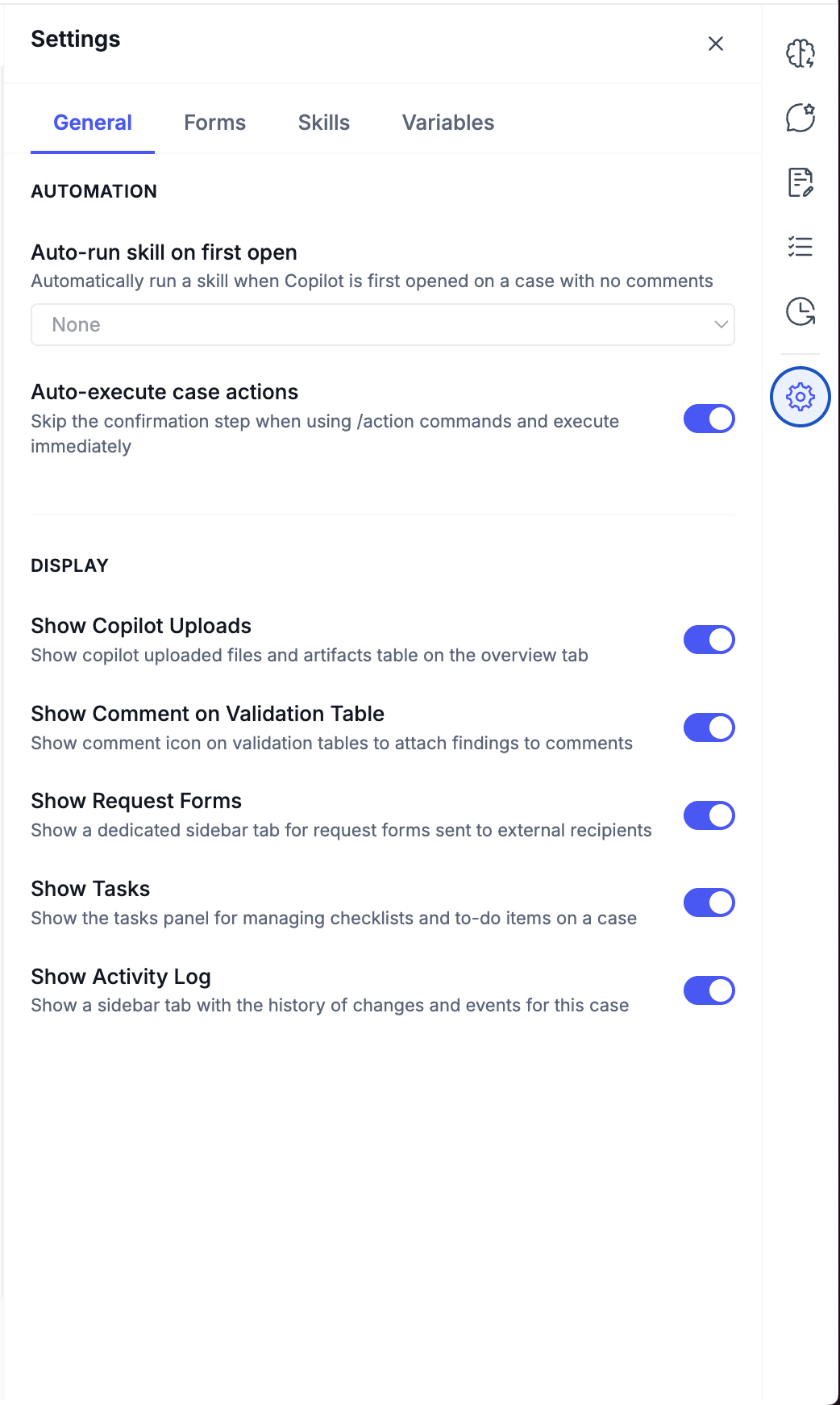
Auto-execute case actions
When enabled, /action commands can execute immediately without a confirmation step.
Form Settings
The Forms section controls intake-form automation, public request-form appearance, email defaults, and reusable form templates.
New Case Intake
Auto-send intake form
When enabled, a request form can be sent automatically when a new case is created.
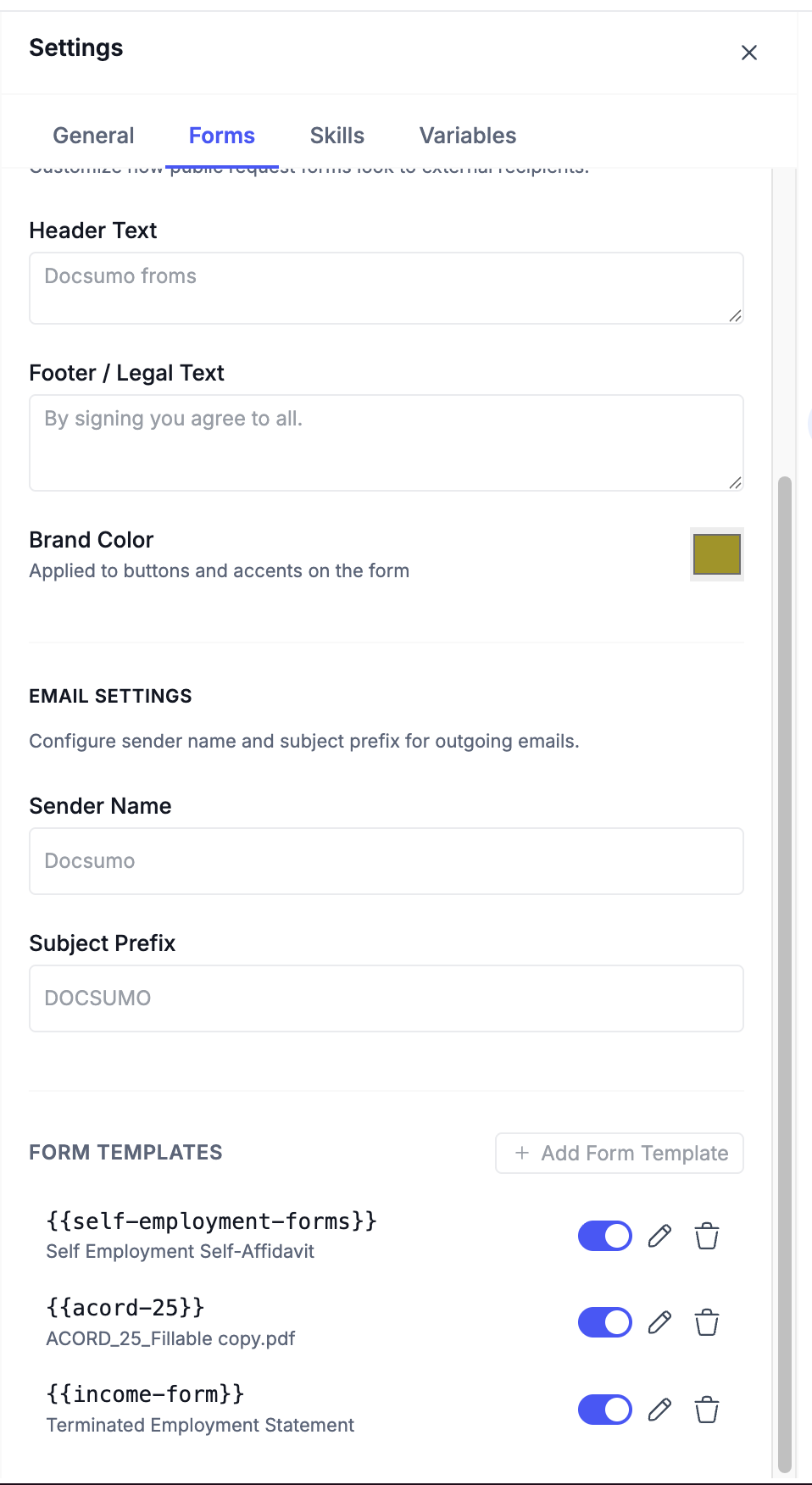
Form Templates
Form templates are reusable structured forms that can be referenced in Copilot and Ask AI, and used inside request forms.
You can:
- Create a form template in
JSON - Upload a fillable
PDF - Convert a PDF template into JSON
- Copy a sample JSON template
- Enable or disable a template
- Edit or delete a template
Variable Settings
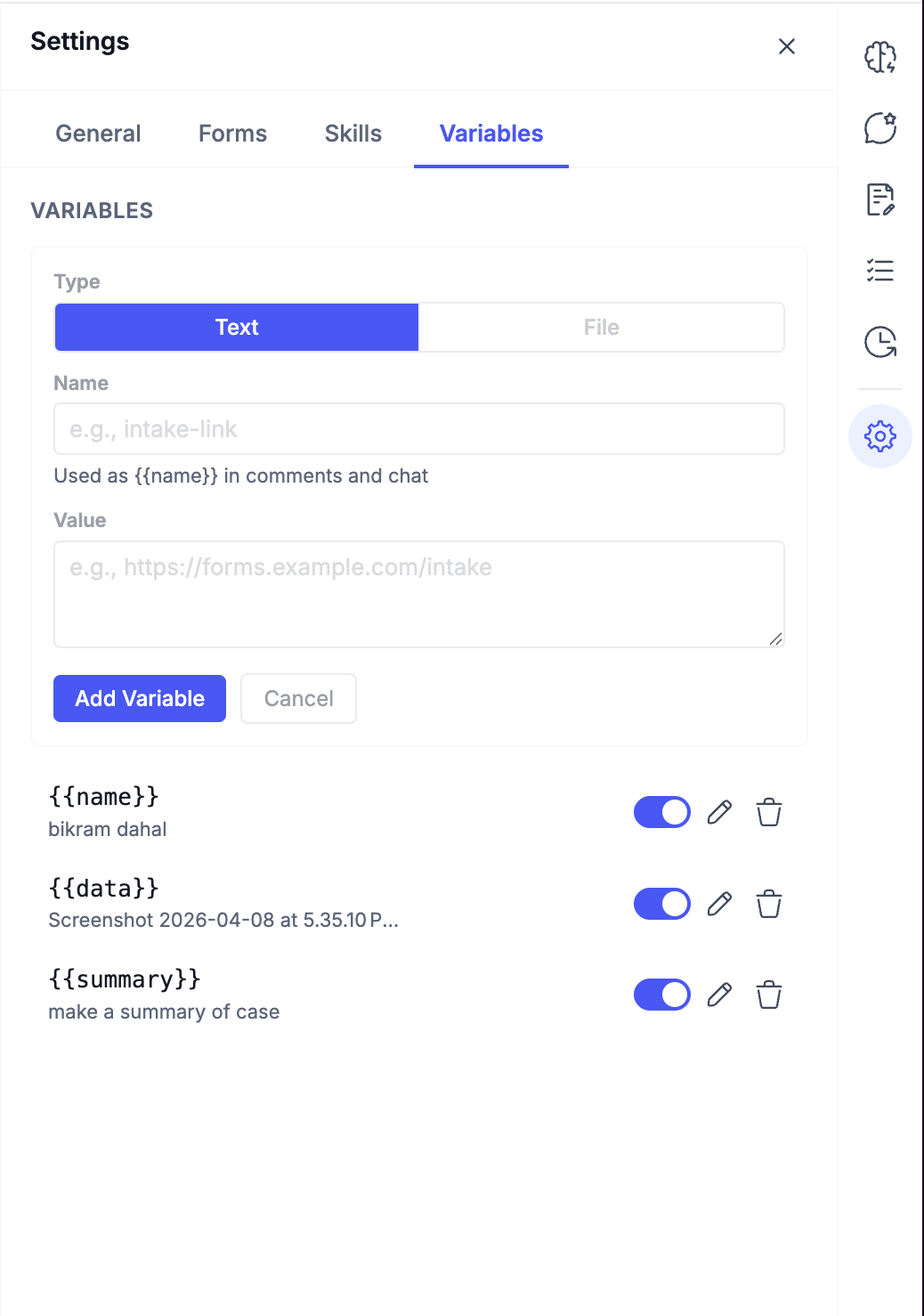
The Variables section manages reusable values that can be inserted into Copilot and Ask AI with {{variable-name}}.
Common Workflows
Review and resolve a case issue
- Open the
Overviewtab and review the case summary. - Open the
Validationtab to inspect validation results. - Attach a validation table to a Copilot comment if needed.
- Mention a teammate,
@docsumo_support, or@sumo_ai.
Collect missing information from an external user
- Open
Copilot. - Run
/request-form. - Open the
Request Formstab. - Send the form and monitor responses.
Work through follow-up actions
- Open the
Taskstab. - Review
Action Requireditems. - Complete, dismiss, approve, upload, or classify as needed.
- Check
Resolvedfor completed work.
Updated 6 months ago