
Overview and Views
Case Overview
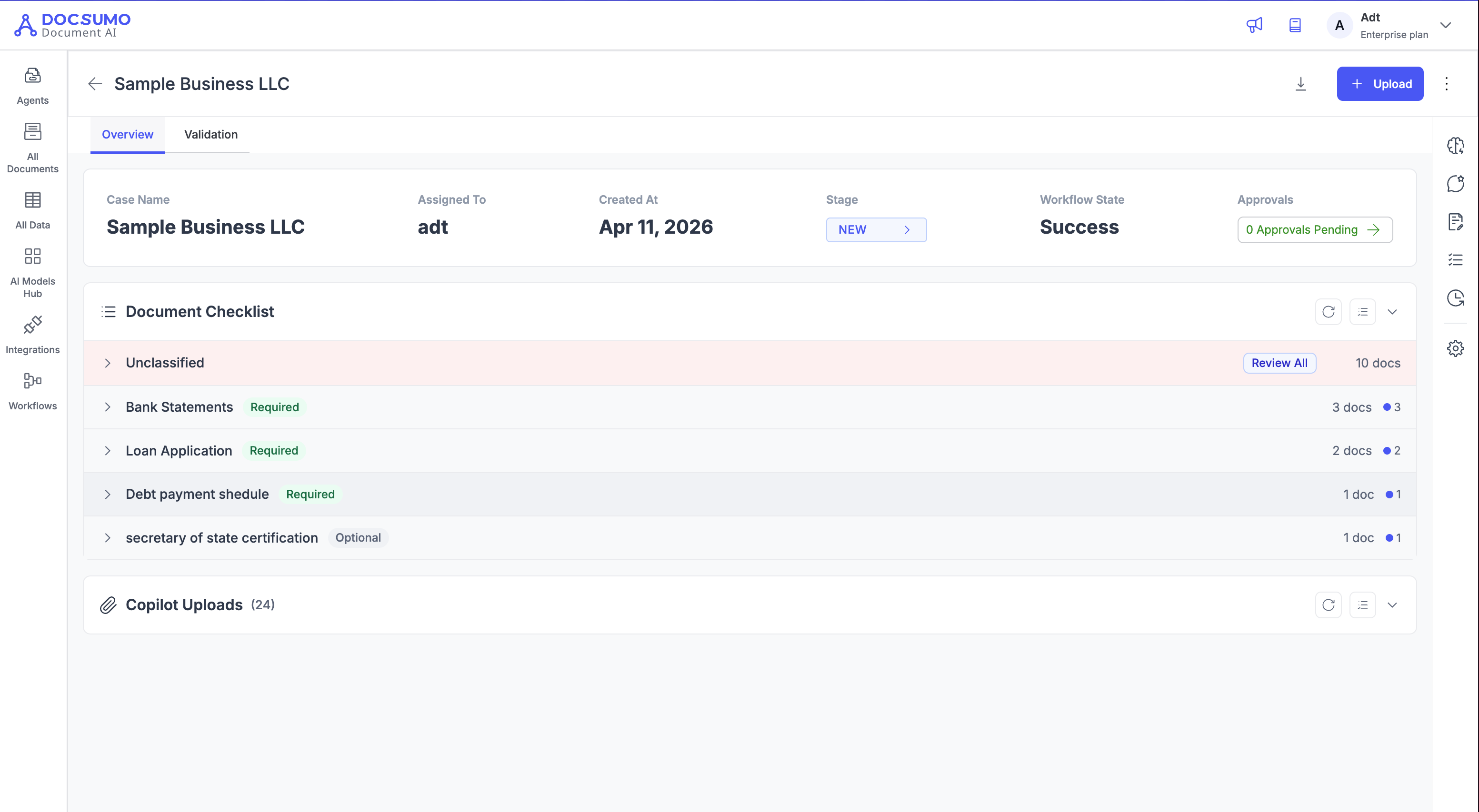
The Case Overview page is the main workspace for reviewing a case, checking validations, collaborating with your team, and taking action with AI tools. It brings together case details, documents, validations, tasks, request forms, activity history, and settings in one place.
On this page, you will mainly work with:
- The top header and action bar
- The
Overviewtab - The
Validationtab - The right-hand activity sidebar
Depending on your case-type settings, some sidebar tabs may be hidden.
Overview Tab
The Overview tab is the default landing page for a case. It gives you a quick summary of the case and access to all case files.
Document Checklist
The Document Checklist shows all documents attached to the case.
Here, you can:
- Expand or collapse the checklist
- Refresh the document list
- Switch between grouped view and flat view
- Review required and optional document groups
- Open documents
- Review unclassified documents
When one or more documents are selected, you can also:
- Rename a document
- Change document type
- Retry processing
- Delete documents
Copilot Uploads
If enabled, the Overview tab also includes a Copilot Uploads section.
This section shows files uploaded through Copilot, generated artifacts, and other AI-related files attached to the case.
You can:
- Expand or collapse the section
- Refresh the list
- Switch between grouped and flat view
- Open uploaded files
- Download uploaded files
Validation Tab
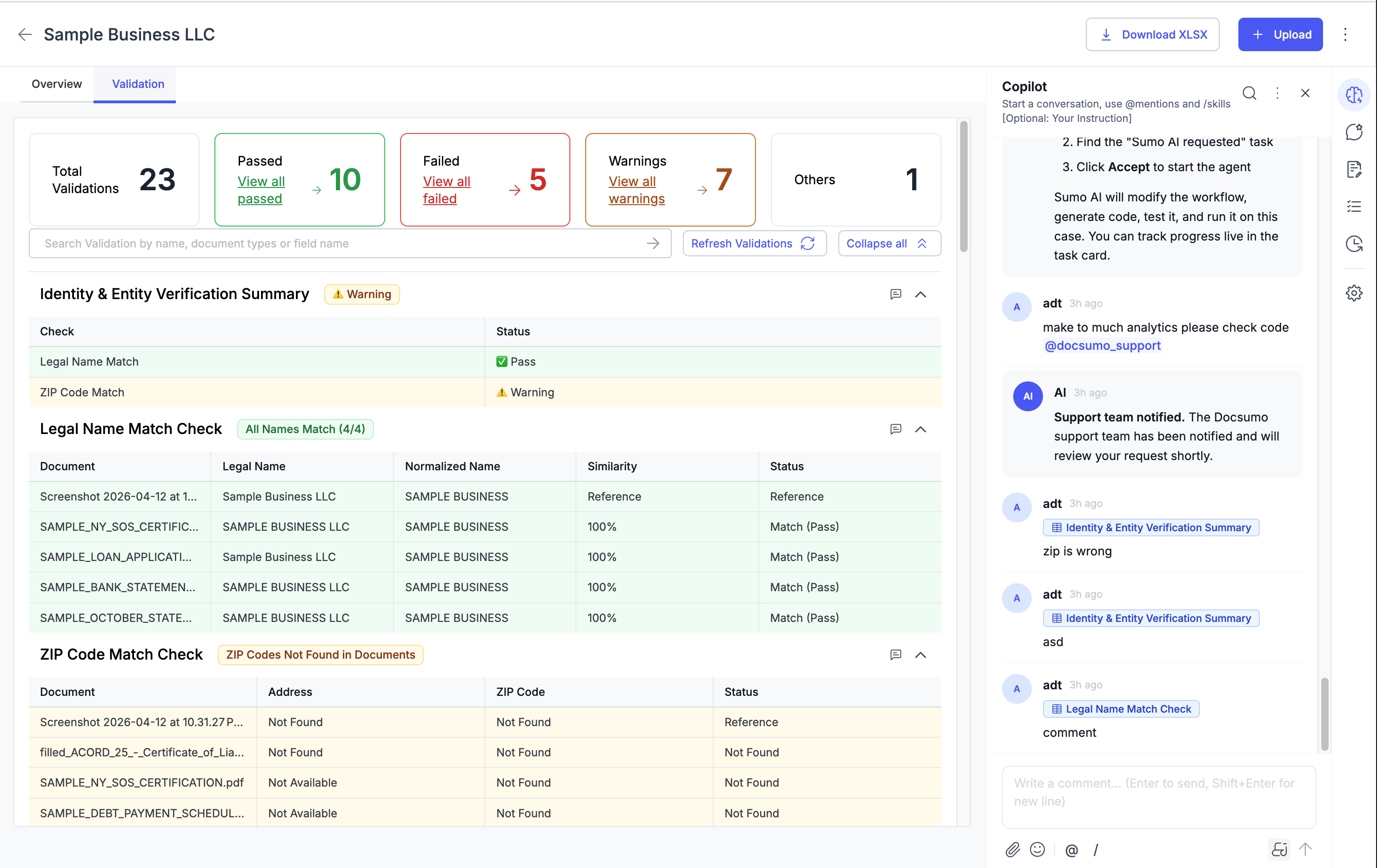
The Validation tab shows the validation output for the case.
This tab helps you review validation tables, spot stale results, and turn findings into collaborative actions.
On this tab, you can:
- Review validation tables and preview data
- Refresh validations when the page shows stale data
- See when a workflow is still running and validations are not yet updated
- Download validation output as
XLSX
Validation Comments
If Show Comment on Validation Table is enabled in settings, validation tables show comment icons.
This lets you:
- Attach a validation table directly to a Copilot comment
- See existing comments linked to a validation table
- Delete linked comments from the validation table popover
This is useful when handing off issues to teammates, Docsumo Support, or Sumo AI.
Updated 6 months ago