
Continuous Learning – Reference Documents
When Continuous Learning is turned on, Docsumo learns from the documents you review and approve. Every time you correct values and approve a document, it can become a reference (template) for future documents that look similar — helping the AI extract data more accurately over time.
The Reference Documents panel, available on the right side of the Review Screen, gives you full visibility into this process. It shows you exactly which previously approved documents were used to guide the extraction of the document you are currently reviewing, and which other documents looked similar but were not used.
PrerequisiteFor documents to appear under Best Matches or Potential Matches, Continuous Learning must be turned on for the document type. If it is off, no reference documents will be shown.
Accessing the Reference Documents Panel
- Open any document in the Review Screen.
- On the far right edge of the screen, click the Reference Docs tab.
- The Reference Documents panel will open, showing the Best Matches, Potential Matches, and Settings sections.
Best Matches
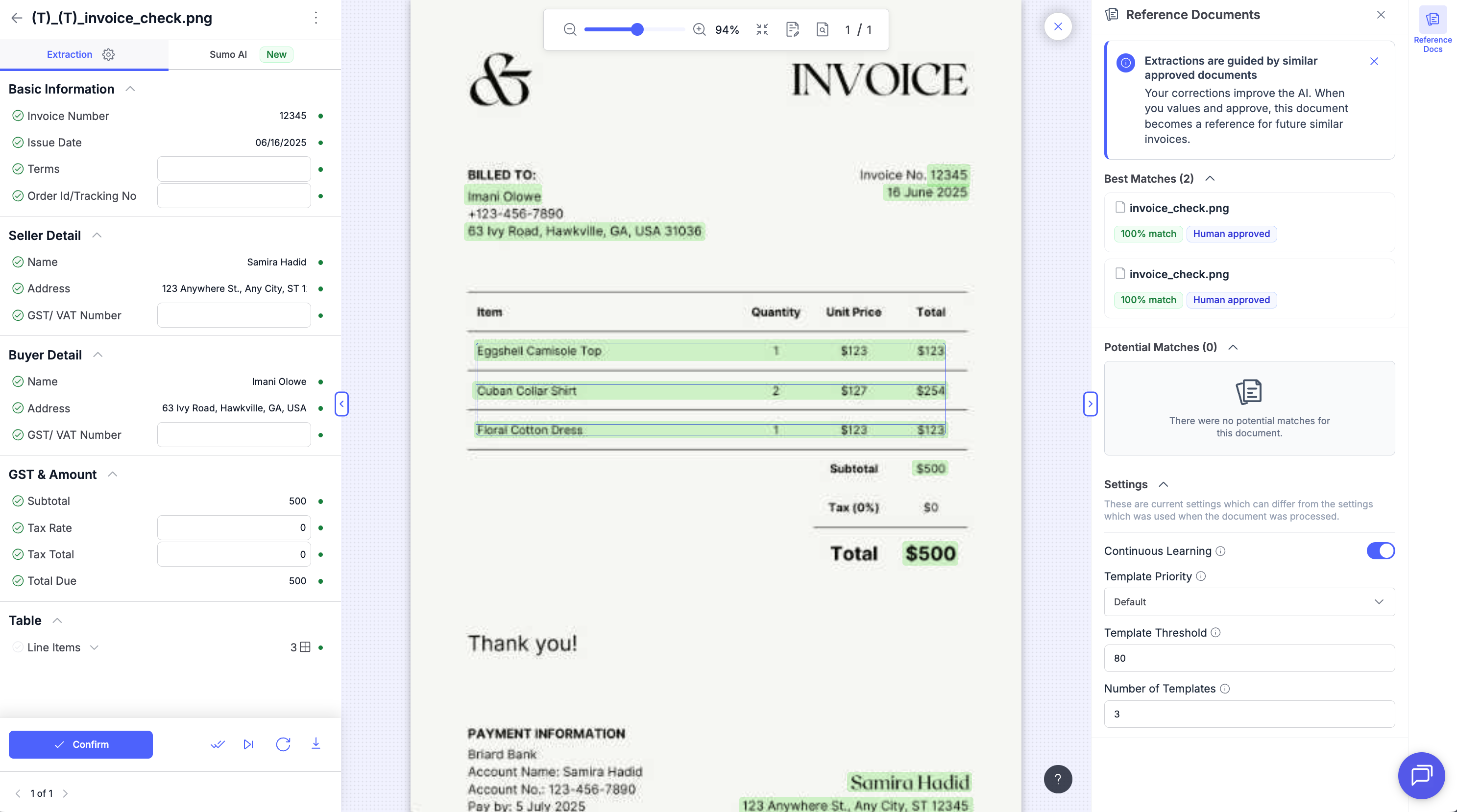
Best Matches are the documents that actually passed the match threshold and were used as template documents to enhance the extraction of the current document.
In other words, these are the approved reference documents the AI relied on to extract data more accurately for the document you are reviewing.
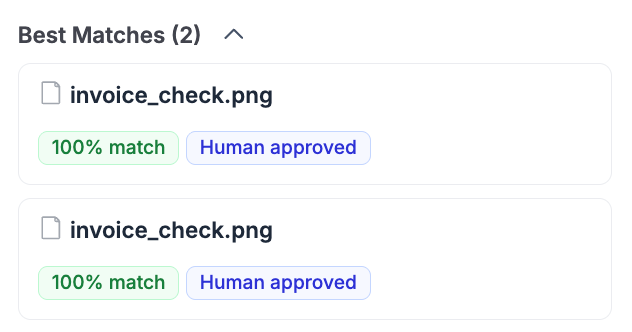
When you click a document card, the matched document opens with the currently active field highlighted within it. This makes it easy to compare the two documents side by side — and is especially useful for troubleshooting. If a field was extracted incorrectly, viewing the matched template can reveal whether the error originated from an incorrect approval in the template document itself.
Each match displays:
- The file name of the reference document.
- A match percentage (for example, 100% match), indicating how closely it resembles the current document.
- An approval tag indicating how the reference document was approved — Human approved (reviewed and approved by a user) or AI approved (approved automatically by the system).
Potential Matches
Potential Matches are documents that look similar to the current document but did not pass the match threshold.
Because they fell below the threshold, potential matches are not used for extraction enhancement — they are shown for visibility only, so you can understand what the system considered but chose not to apply.
Potential Matches are also tied to the available template slots. When the number of Best Matches already equals the Number of Templates defined in Settings, all slots are filled and this section will be empty, showing "There were no potential matches for this document." If slots are still available, you can lower the Template Threshold so that these potential match documents qualify as Best Matches and are used for extraction enhancement.
Settings
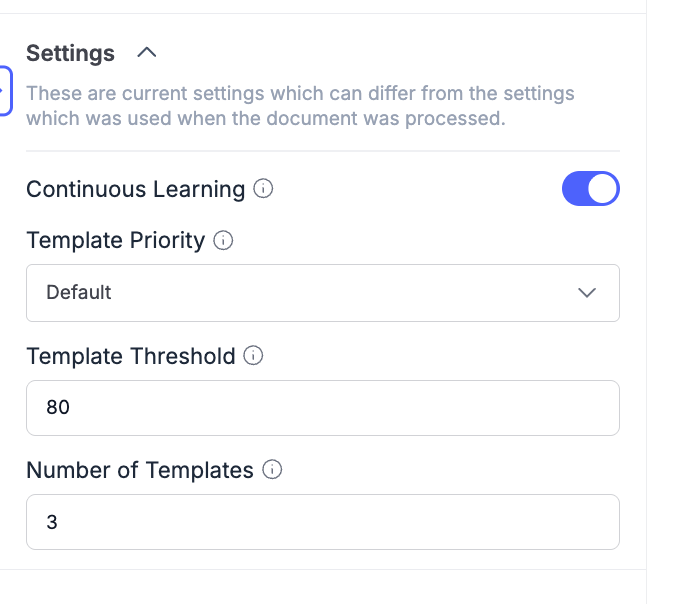
The Settings section lets you control how Continuous Learning behaves. These are the current settings, which may differ from the settings that were in effect when the document was originally processed.
-
Continuous Learning — Toggle to turn Continuous Learning on or off. When on, approved documents can be used as reference templates and reference documents will appear in this panel.
-
Template Priority — Sets the priority used when selecting template documents (for example, Default).
-
Template Threshold — The minimum match score a document must reach to qualify as a Best Match and be used as a template (for example, 80). Documents that score below this threshold appear as Potential Matches instead and are not used for extraction.
-
Number of Templates — The maximum number of template documents that can be used to enhance the extraction of a single document (for example, 3).
Frequently Asked Questions
Why don't I see any reference documents? Reference documents only appear when Continuous Learning is enabled for the document type. Make sure the toggle in the Settings section is turned on. New document types may also not yet have any approved documents to reference.
What is the difference between a Best Match and a Potential Match? A Best Match passed the match threshold and was actually used as a template to improve extraction. A Potential Match looked similar but scored below the threshold, so it was not used for extraction — it is shown only for visibility.
Do Potential Matches affect my extraction results? No. Potential Matches are never used to enhance extraction. Only Best Matches contribute to the result.
How can I make a document appear as a Best Match in the future? Correct any extraction errors and approve the document. Once approved, it becomes part of the reference pool and can be used as a template for similar documents going forward.
Can I change how many templates are used or how strict the matching is? Yes. Use the Number of Templates field to control how many templates can be applied, and the Template Threshold to control how closely a document must match before it qualifies as a Best Match.
Updated 4 months ago